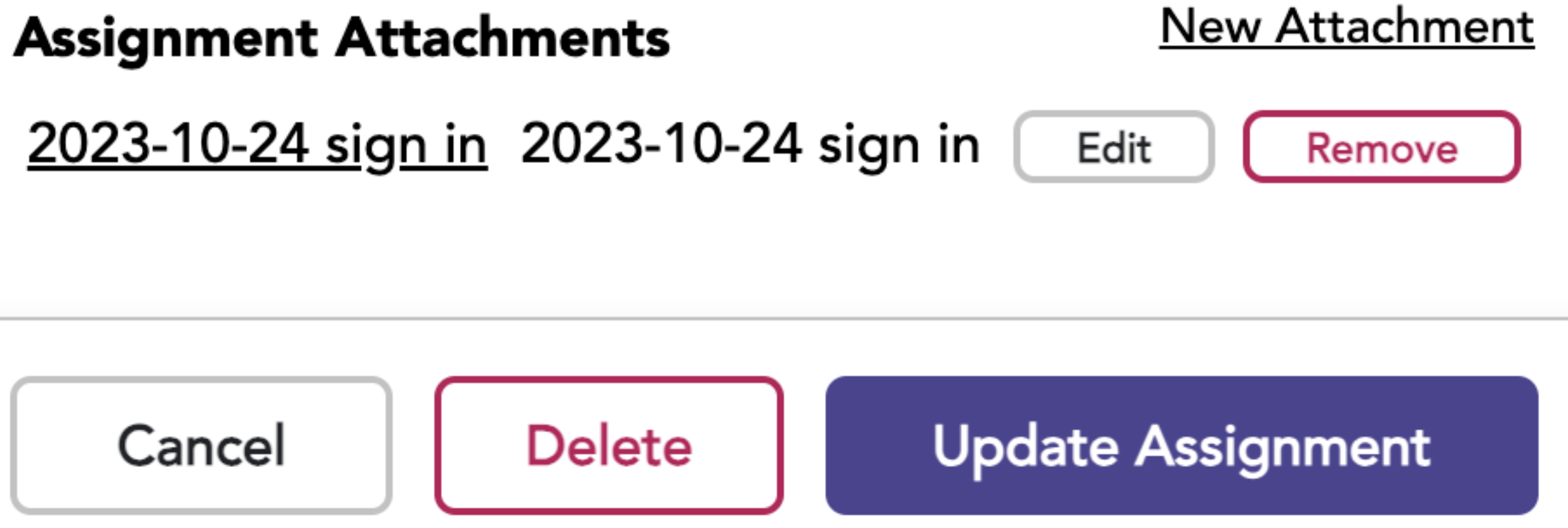
Attachments to a completed assignment (part of the Enterprise package) might include a sign-in sheet and/or a graded quiz.
There are two ways to add an attachment to a Completed Assignment
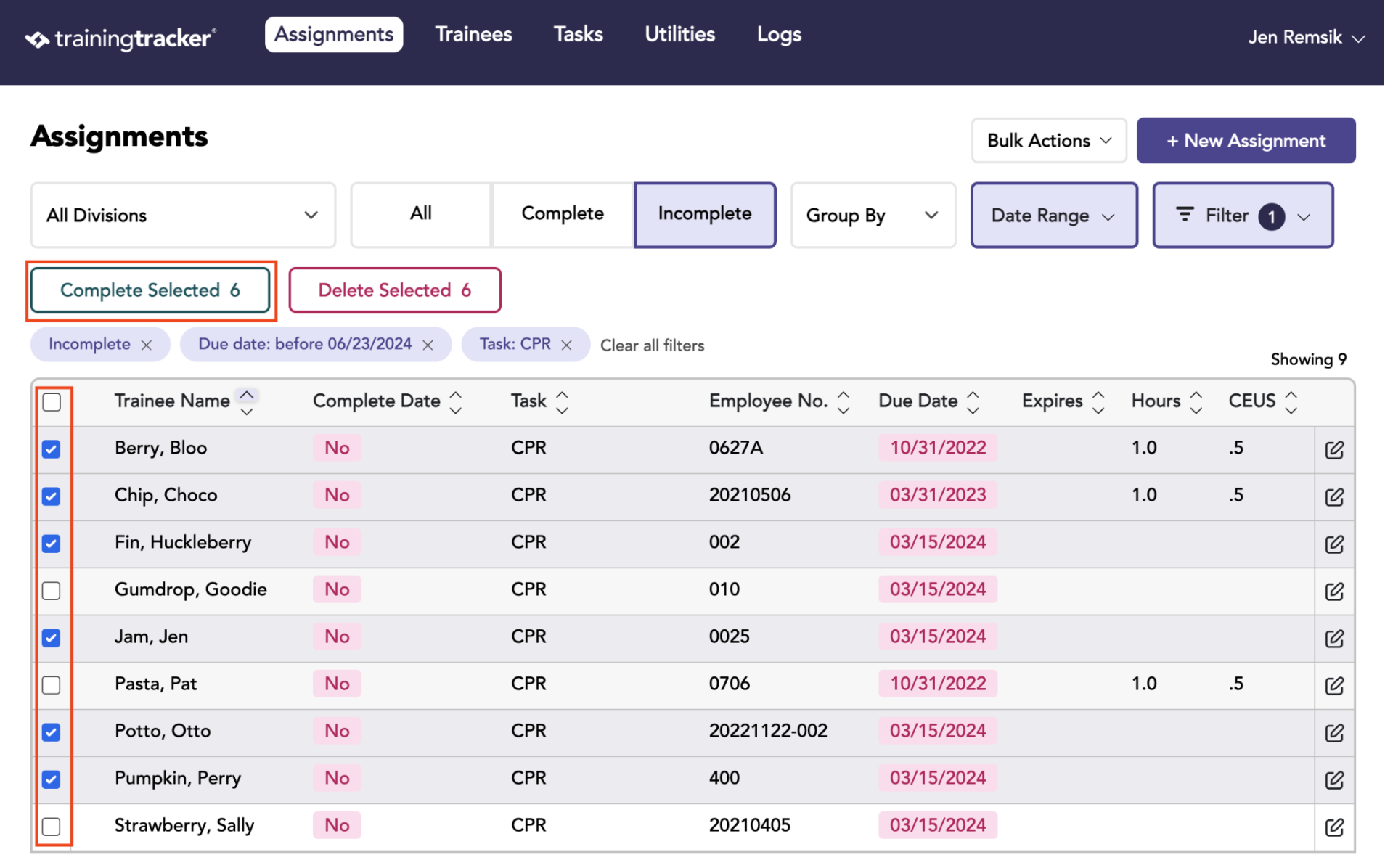
Option 1: Complete Selected Button
- Apply the needed filters.
- Select the desired Assignments.
- Click the Complete Selected button.
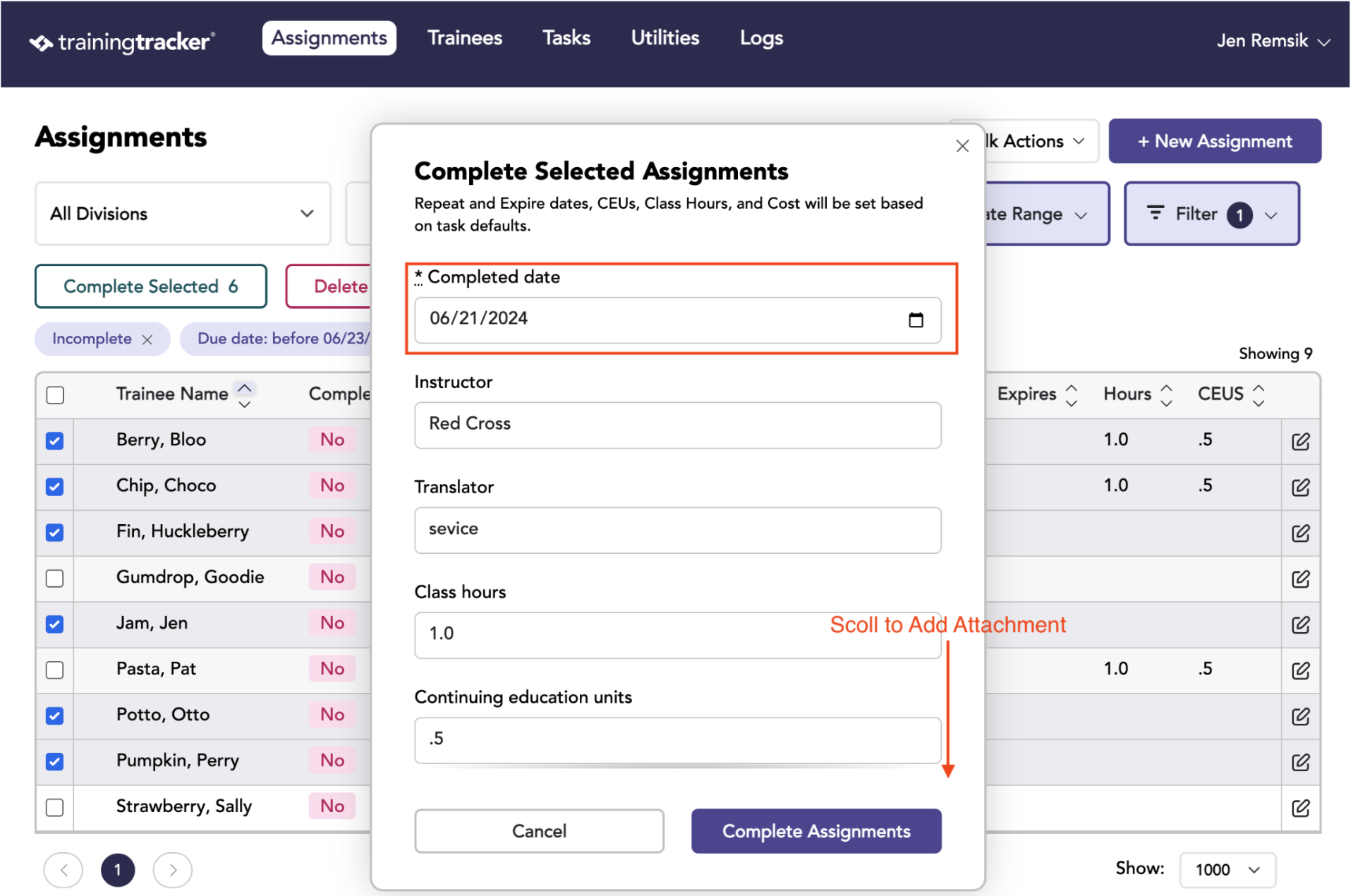
Enter the complete date and apply any updates to the Instructor and Translator. Then click Add Attachment.
If you don’t need to add an attachment, click the Complete Assignment button.
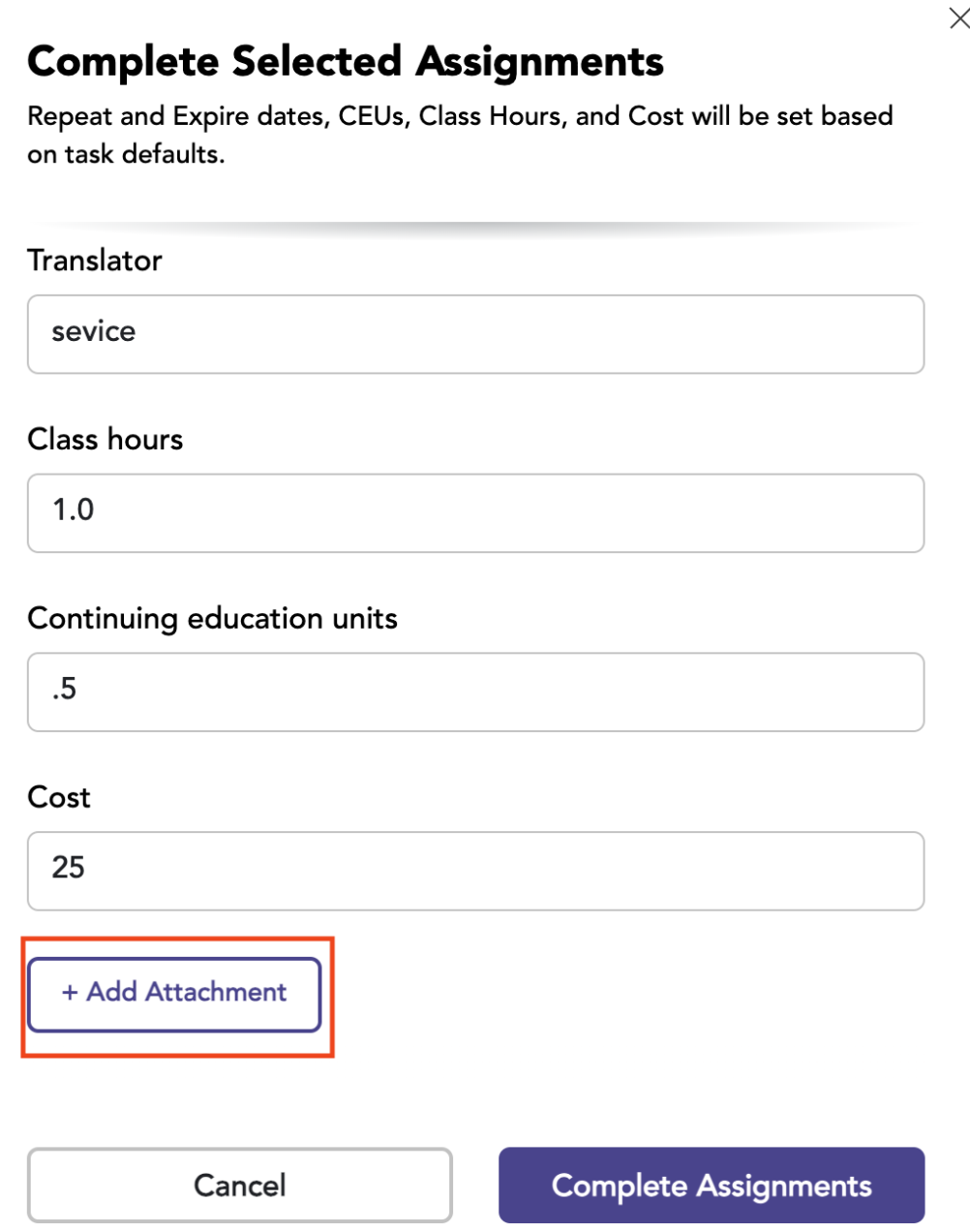
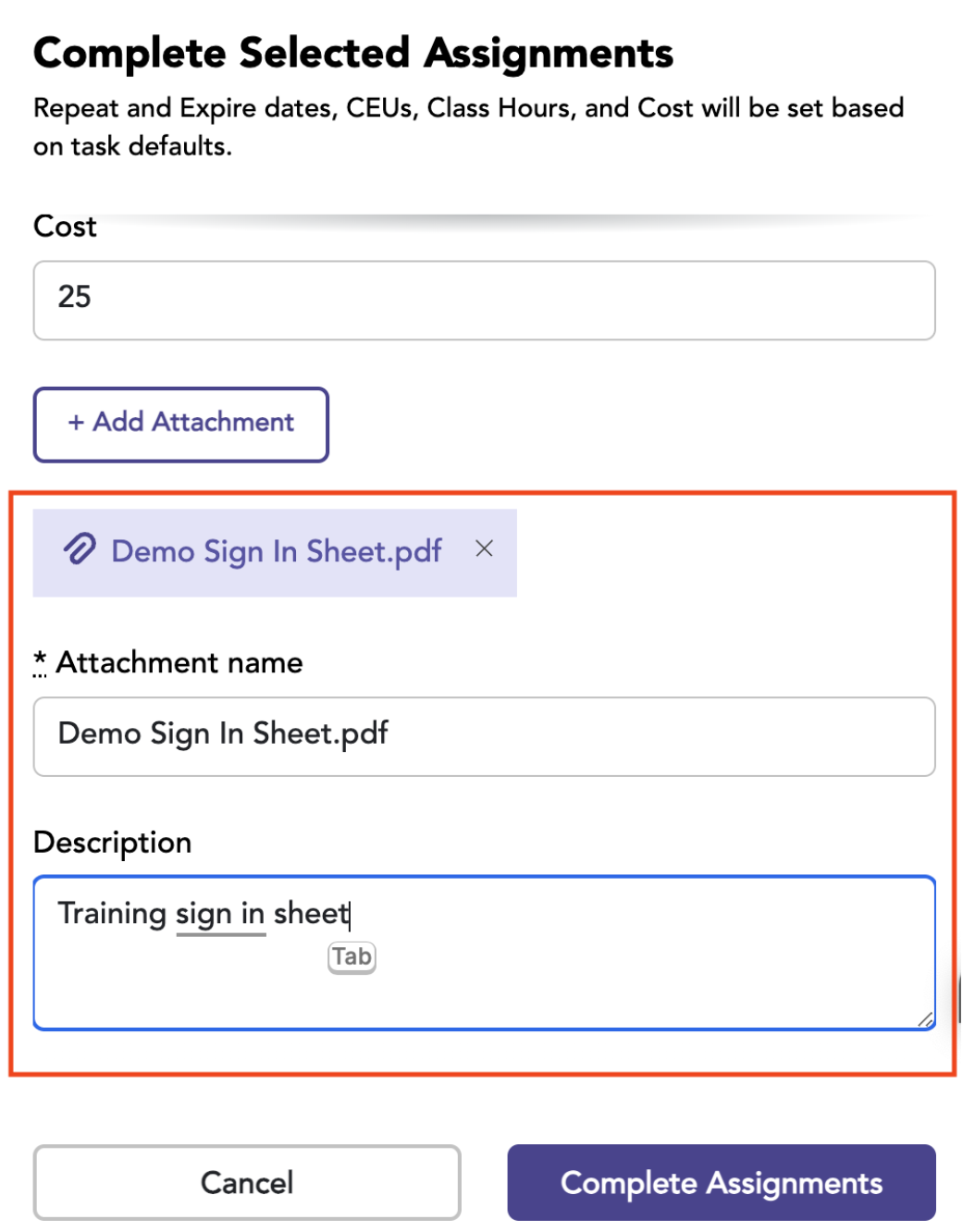
Click Add Attachment.
Choose the file to be attached
Add a description
Click Complete Assignment
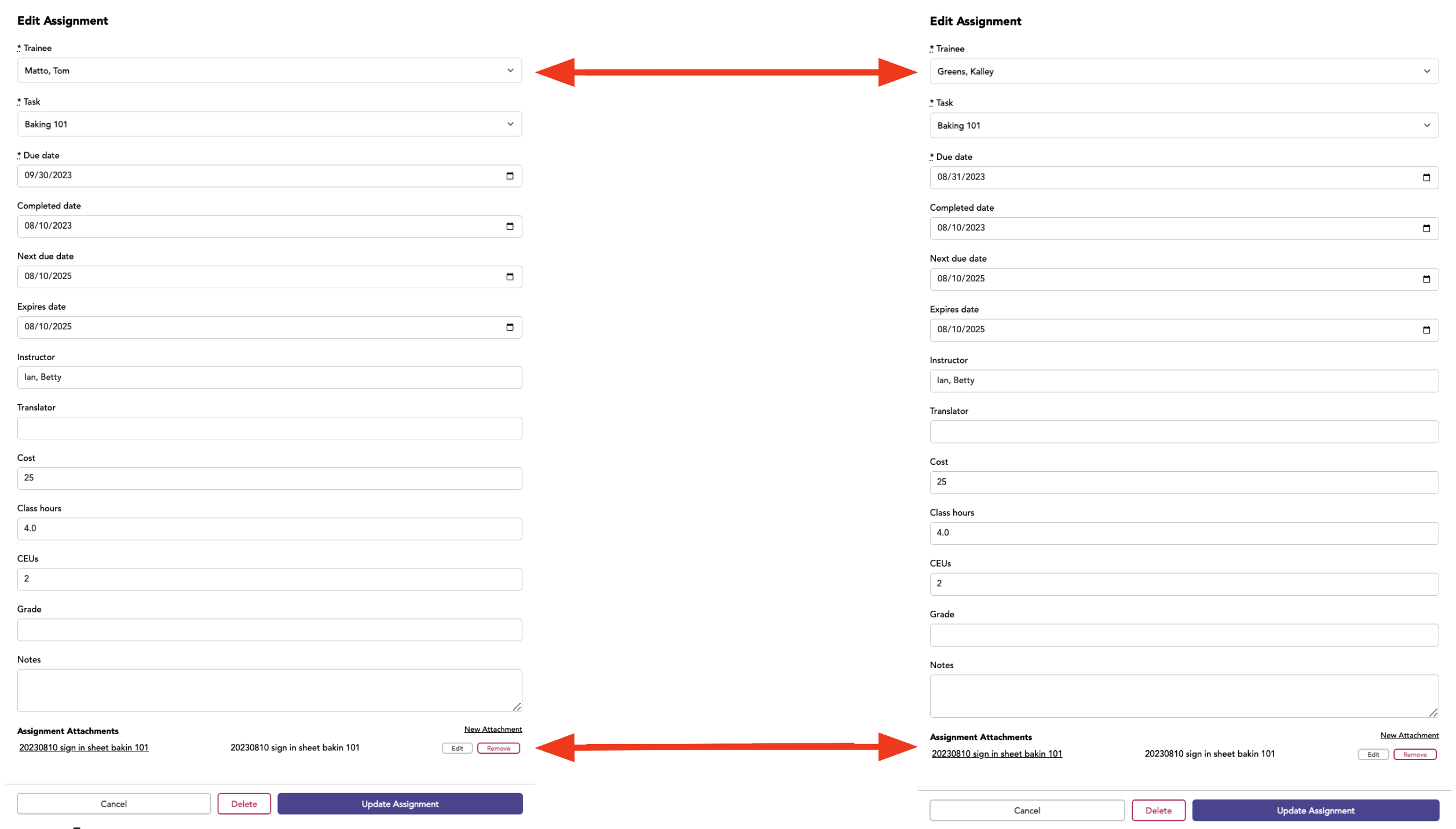
As you can see the same attachment is attached to multiple Assignments
Option 2: Using the Assignments Edit Button
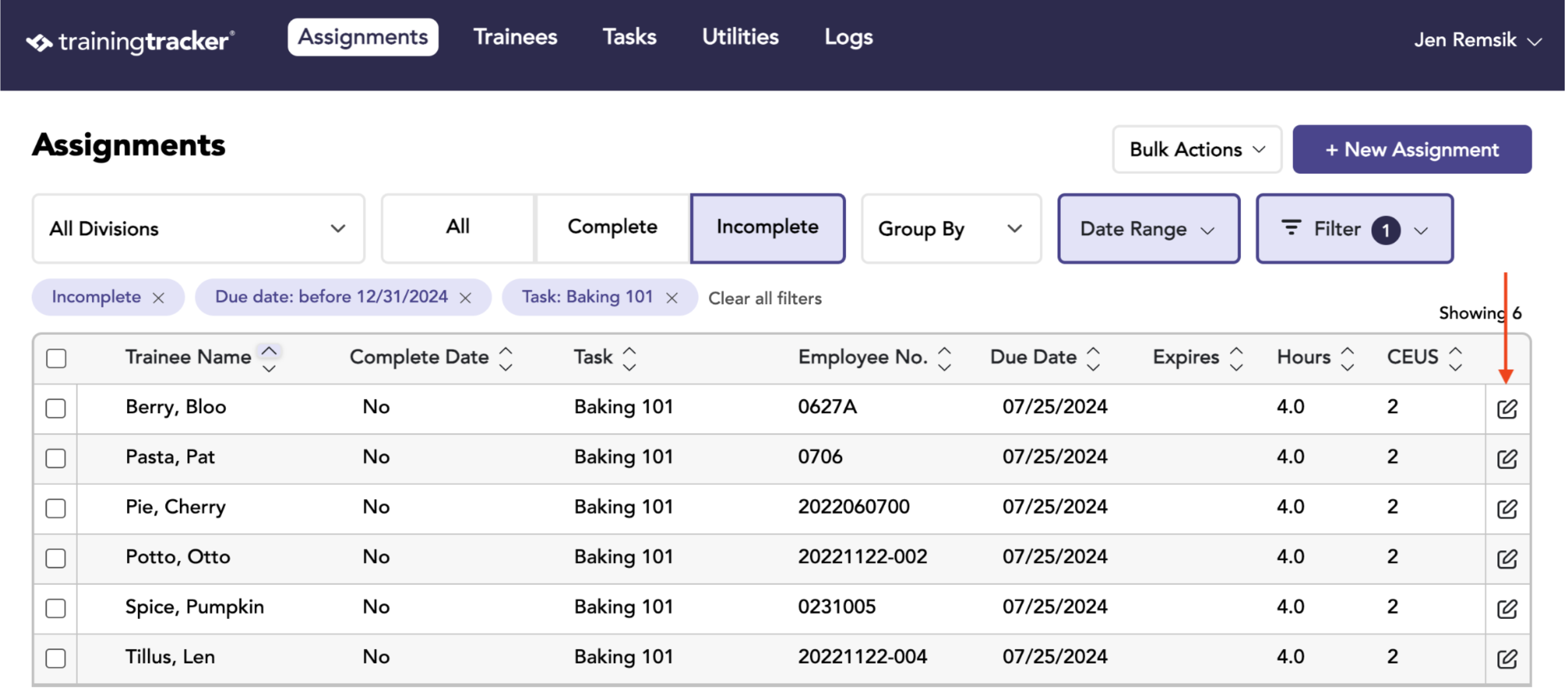
Enter the Completed Date.
Select the New Attachment to go through the attachment process.
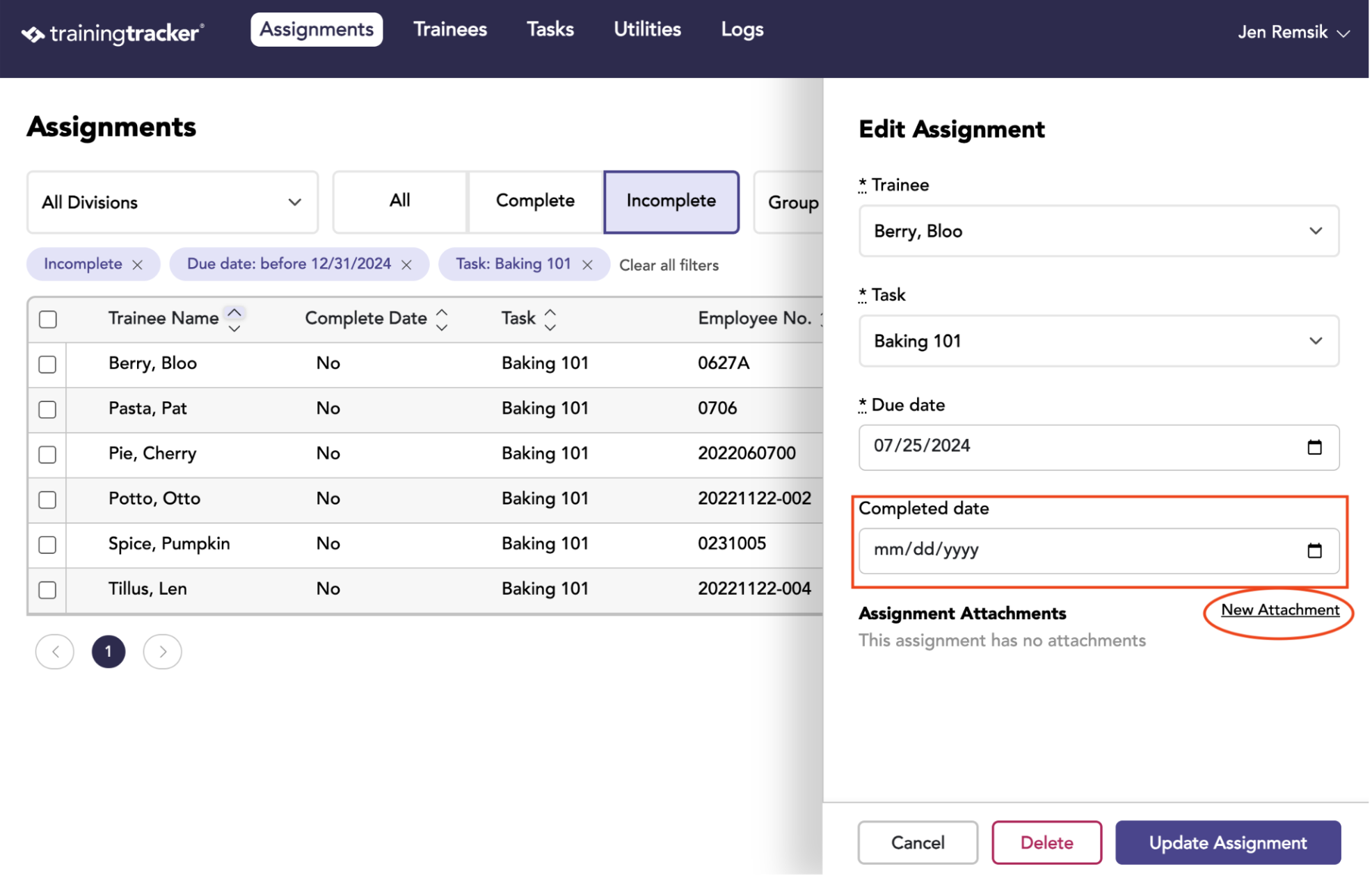
Choose the file to be attached.
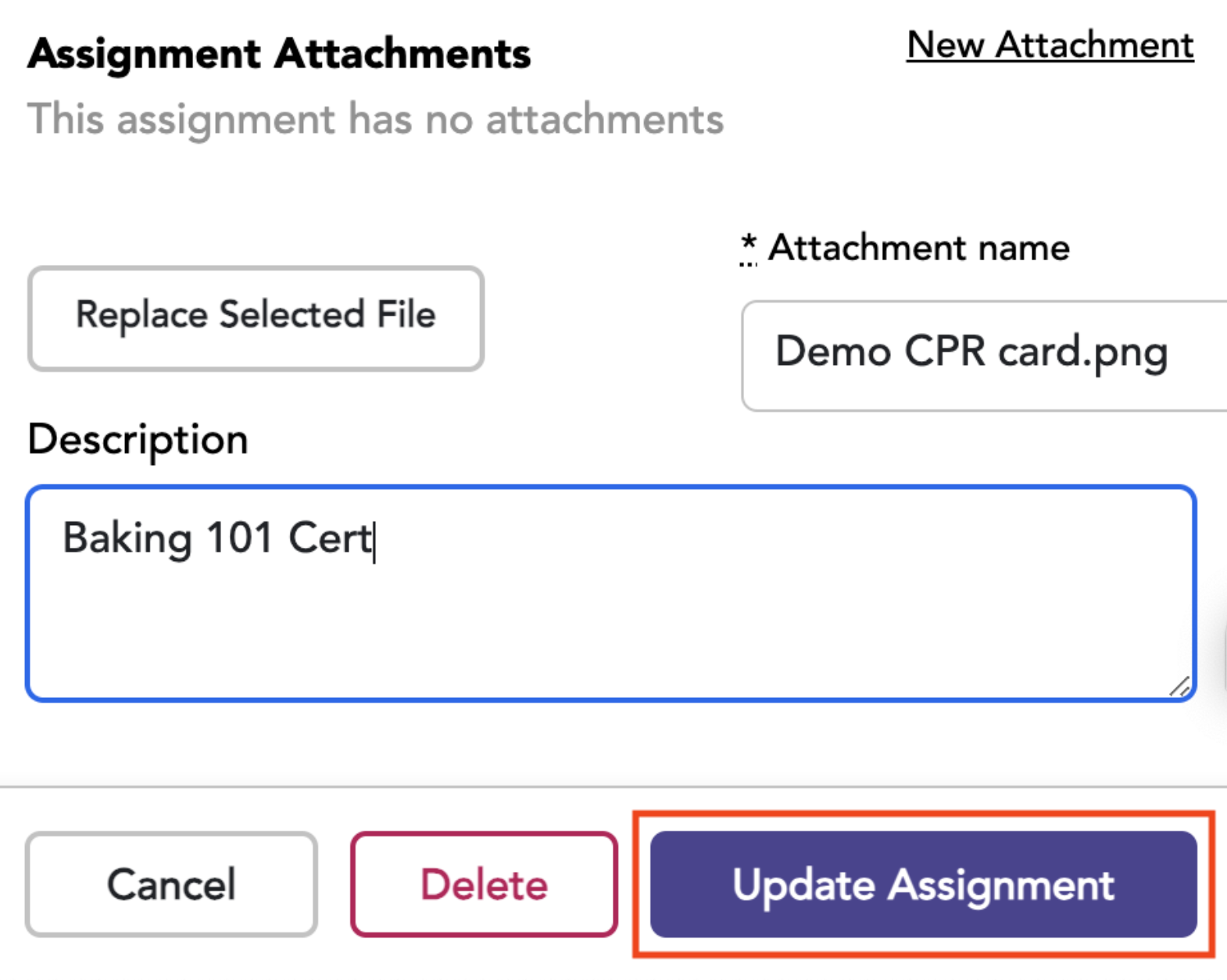
Enter a description if desired.
Click Update Assignment.
To view the attachment select the edit button for the desired completed assignment and then the desired Attachment Name. A new tab will open so you can print or download the attachment.