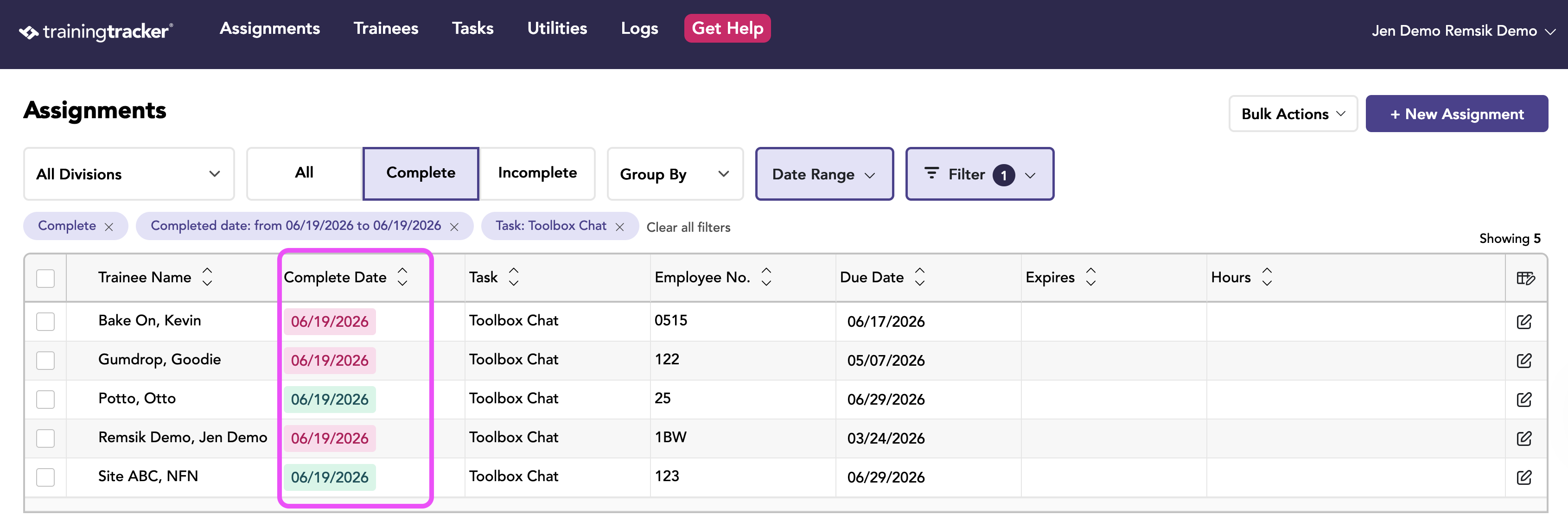
Use the Trainee ID QR Codes to scan multiple people during training sessions; this will update Training Tracker®.
Printing Trainee ID QR Codes
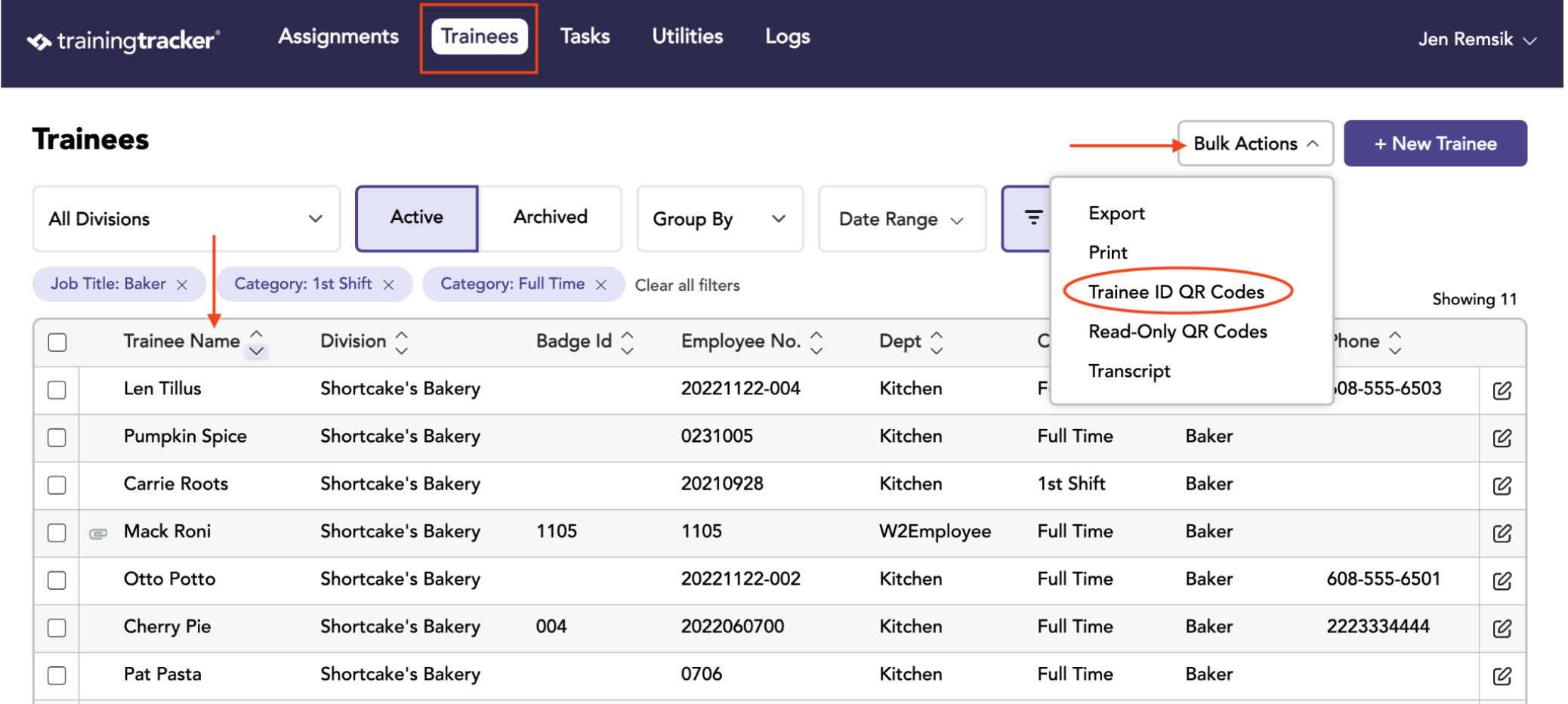
- Go to the Trainees Tab.
- Apply the appropriate search filters for the desired Trainees.
- Click on “Name” in the search result table to ensure the names are in alphabetical order.
- Click the Bulk Action button to select Read-Only QR Codes.
Use the Trainee ID QR Codes to scan multiple attendees for the same training without using the attendance sheet. This will work like scanning barcodes from the employees’ badges.
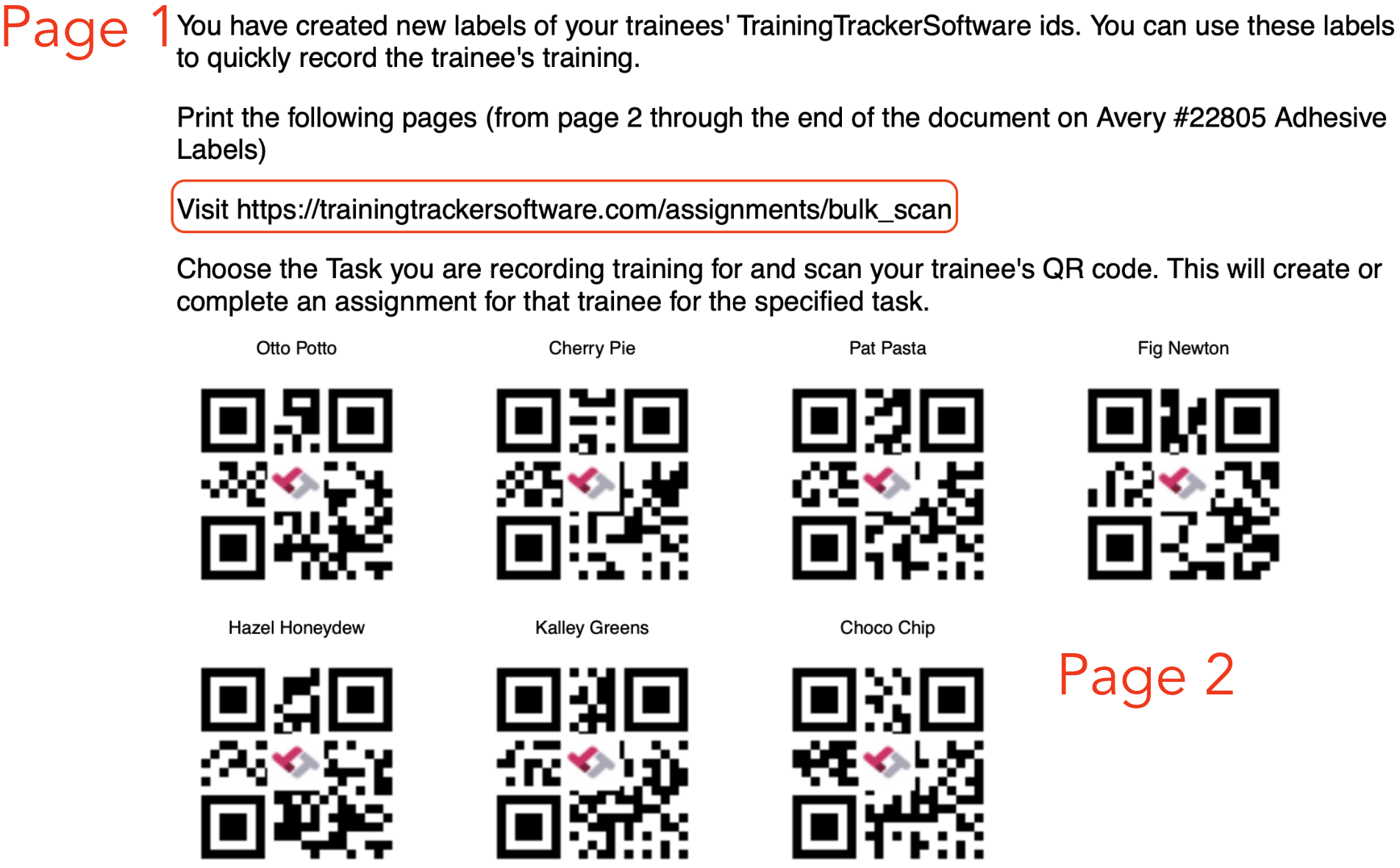
- The file will go to your downloads folder. From there, you can view or print the QR Codes for placement on badges.
- Training Tracker recommends using Avery #22805 Adhesive Labels for printing.
- Using a mobile device, follow the instructions on page 1, and the labels start on page 2.
Scanning QR Codes
Log in, select the task name, and the back camera. Your mobile device may request access to your camera.
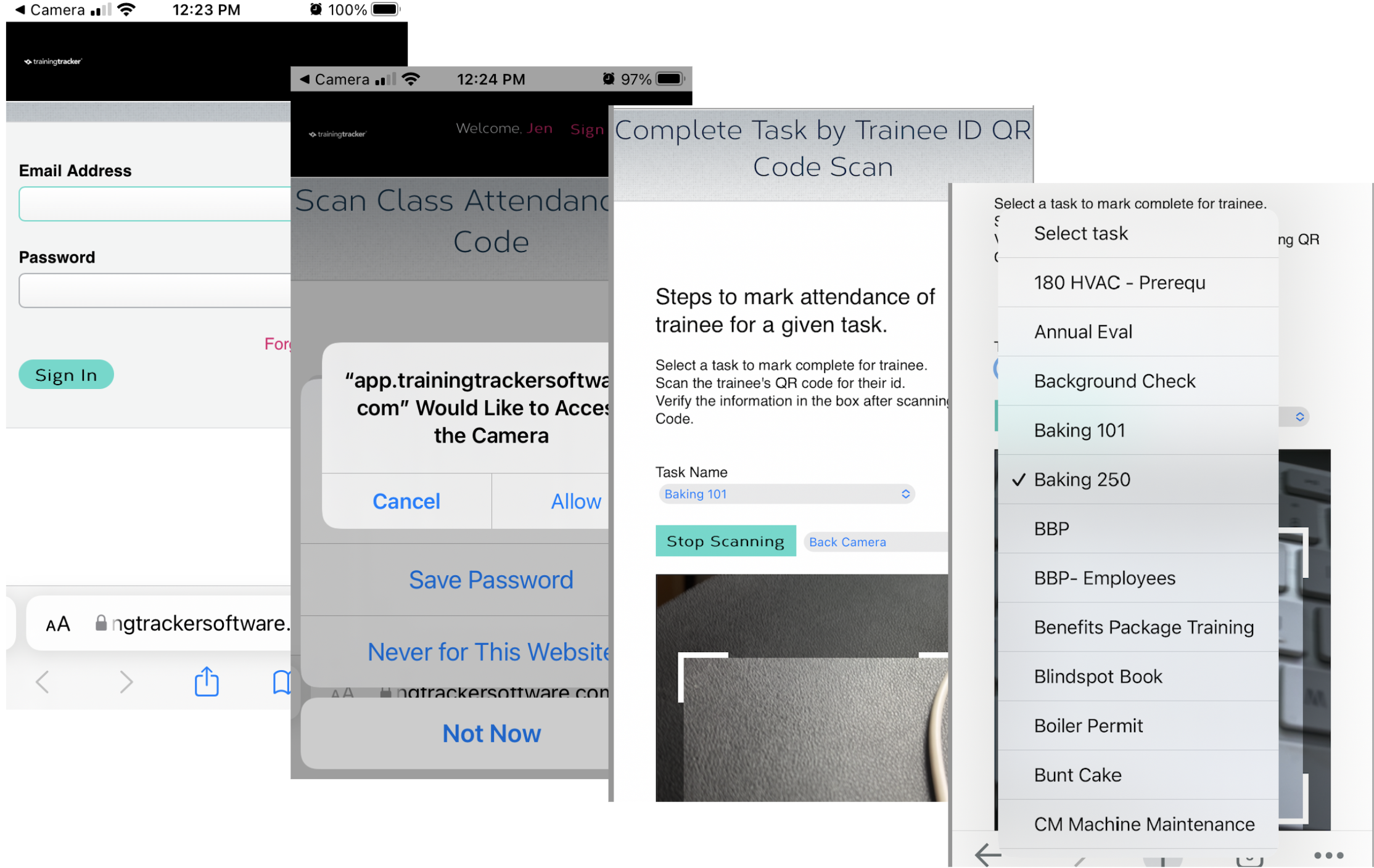
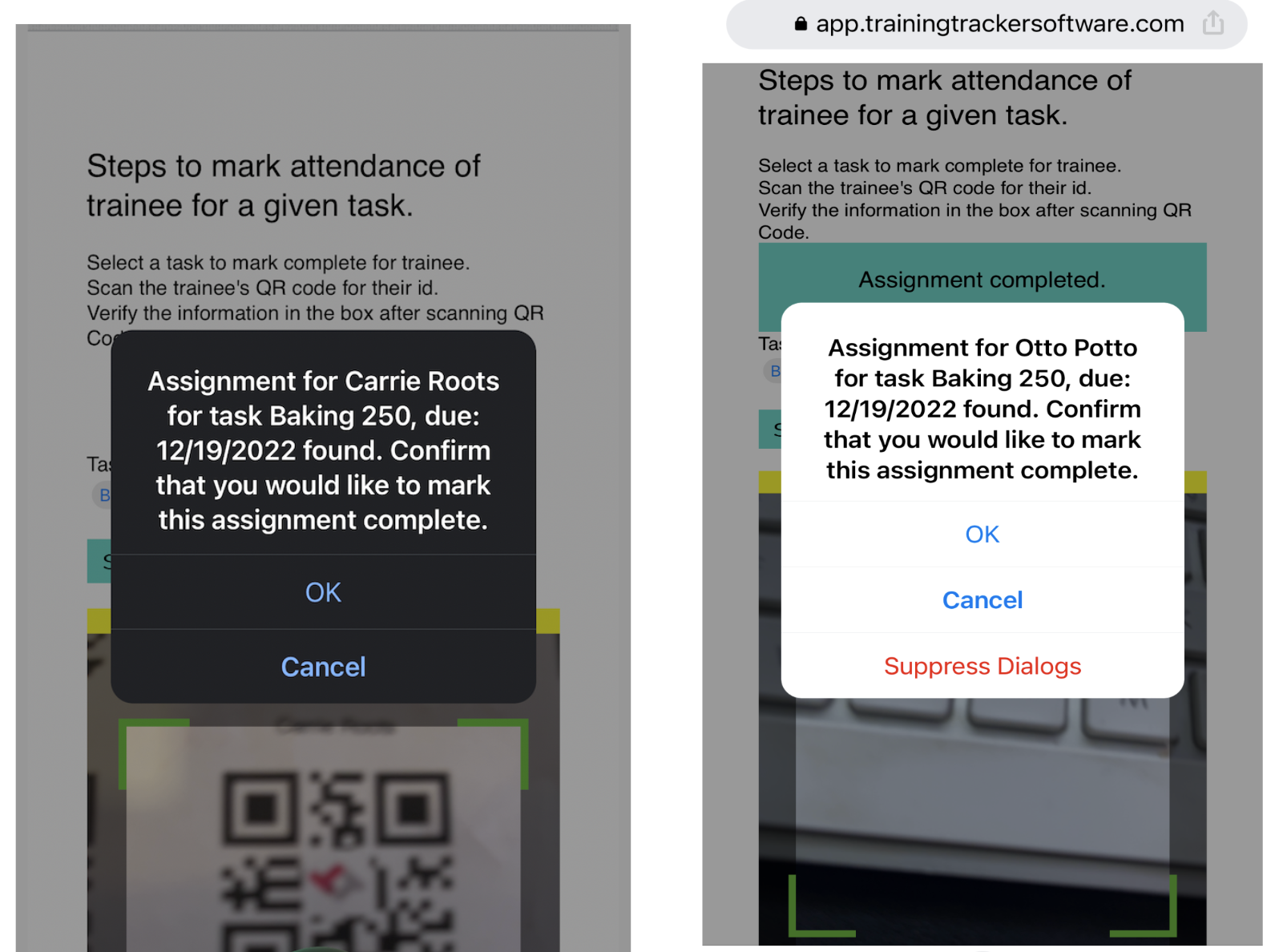
Scan a desired QR code on the employee’s badge, slowly adjusting so the code fills the brackets.
Confirm you are scanning the correct code for the correct person and task.
Proceed to the next desired QR code. Click stop scanning and sign out when you are done
Process Scans in Training Tracker
Your scans are now updating Training Tracker by entering the scan date as the task’s Completed date.
If you are logged in to Training Tracker on your computer while scanning the QR codes, you may need to refresh the browser to see the updates.