Import trainees from a CSV file into Training Tracker
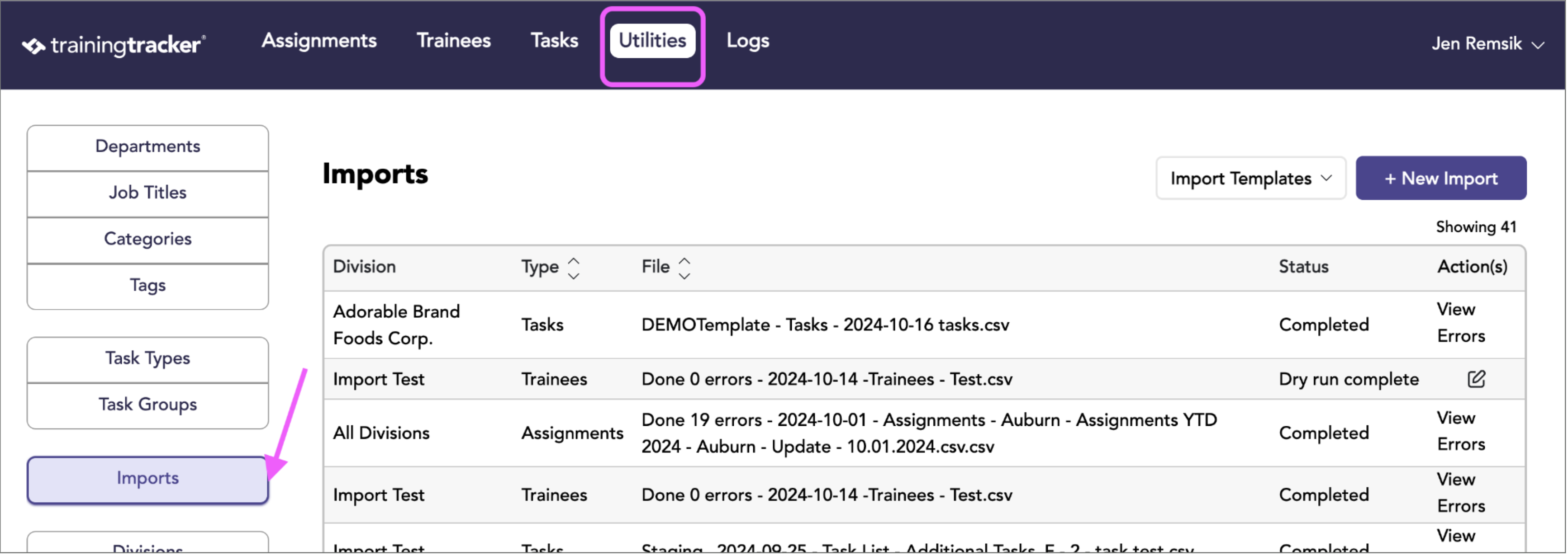
Go to the Utilities tab and click on Imports on the left side
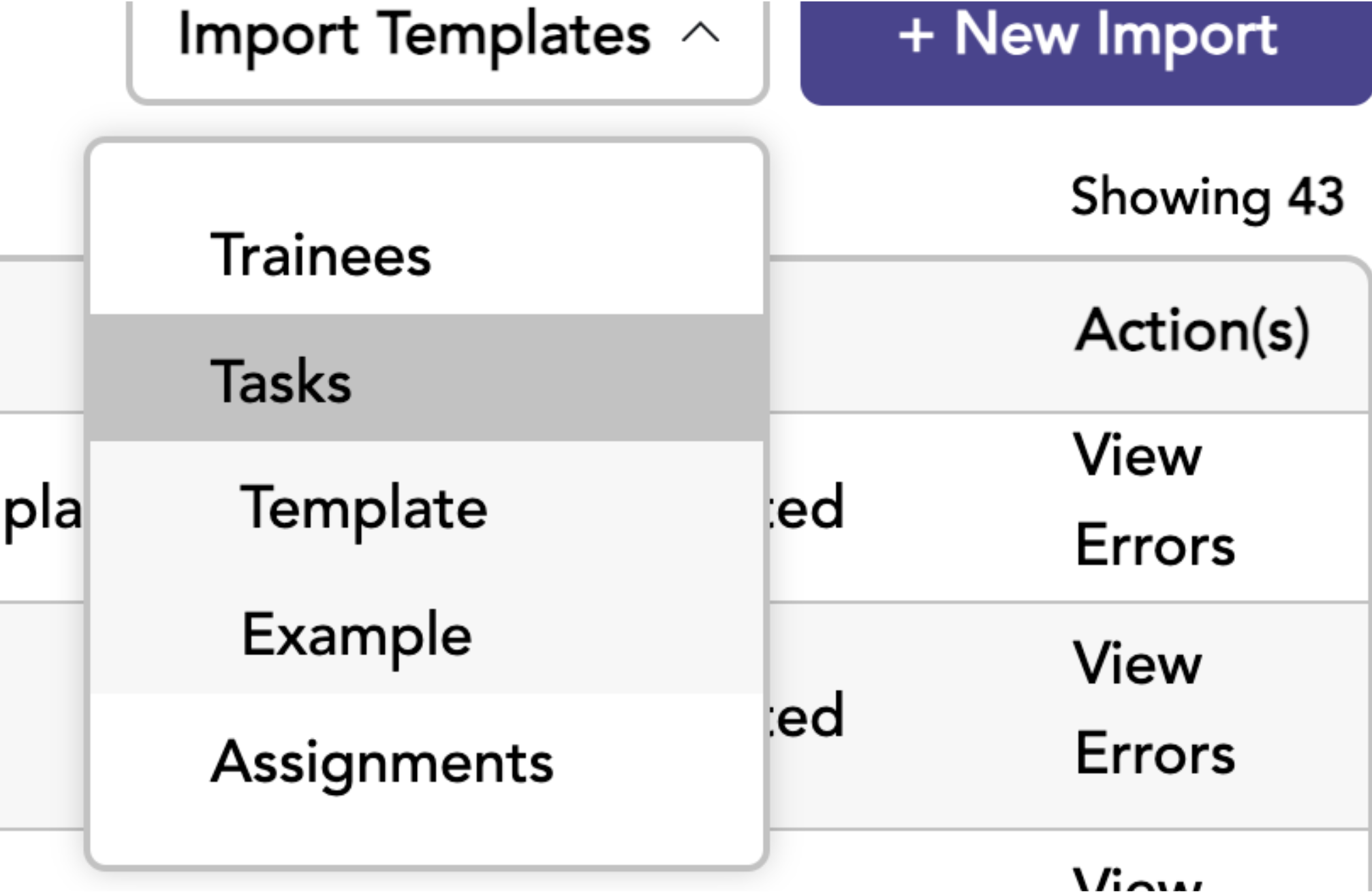
Download the Trainees Import Template and reference the Sample Template as needed.
Enter your data into the Template. Please note you will need a separate Trainee Template for each Division if you are on the Enterprise feature package and using the Multiple Divisions feature.

A few things to note:
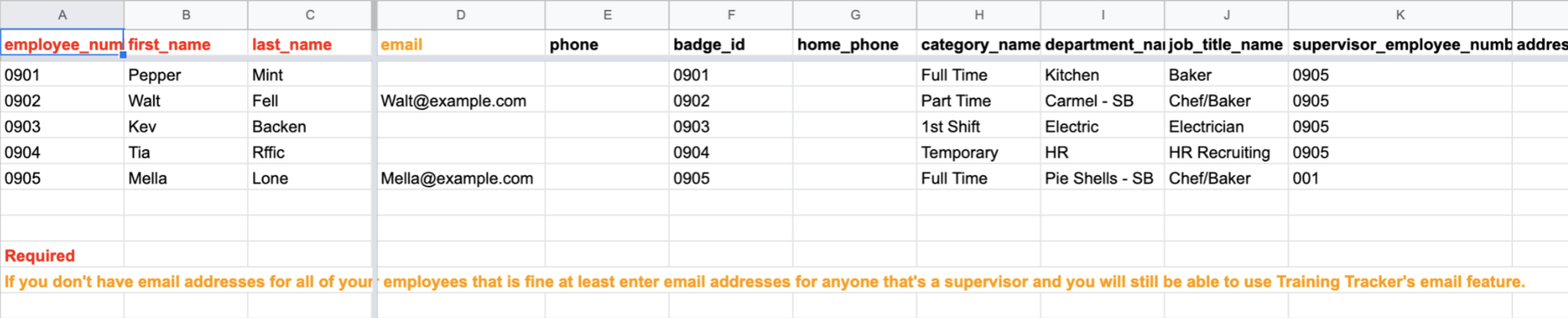
- The items in red are required.
- At least enter email addresses for anyone who’s a supervisor if you don’t have email addresses for all of your employees, and you will still be able to use Training Tracker’s email feature.
- When the items in the Departments, Job Titles, and Categories columns are imported, they will be associated with All Divisions. Once the import is complete, you can edit them if they are part of a particular Division.
Here’s a view of the sample template.
- TraineeTemplate: https://docs.google.com/spreadsheets/d/1RoOQuQbBsN6XZJzEgcVPnG_6dySs_AB1DLbK8RvV4YE/edit?usp=sharing
- Trainee Sample Template: https://s3.amazonaws.com/tt-web-7/docs/Example%20Template%20-%20Trainees.pdf
Once the template is complete, download it as a CSV file.
File > Download or Export > select CSV file format
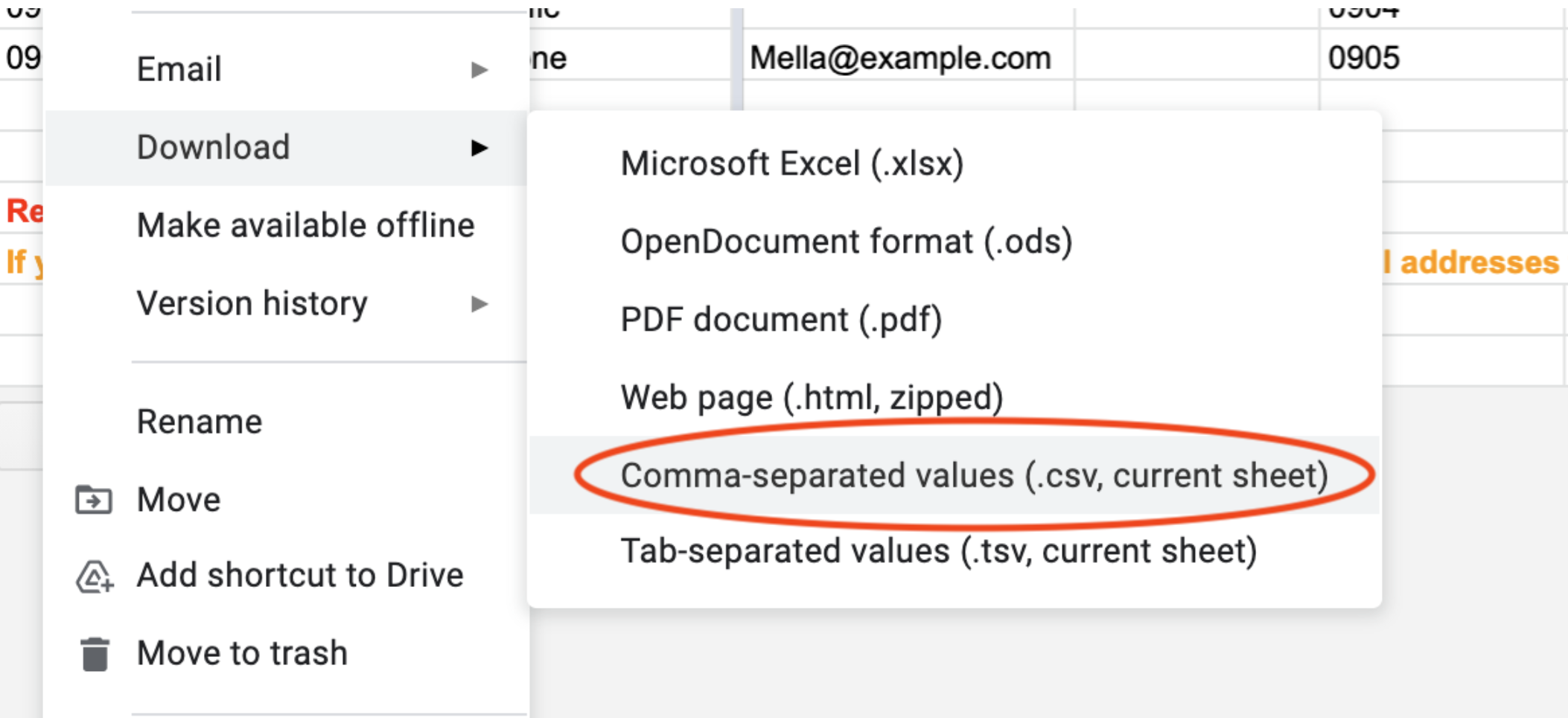
Go back to the Import page
Select your file type: Trainees
Select the desired Division. Most often, you will use your main company, Division.
Select your file to be imported. Reminder: the file format required is CSV.
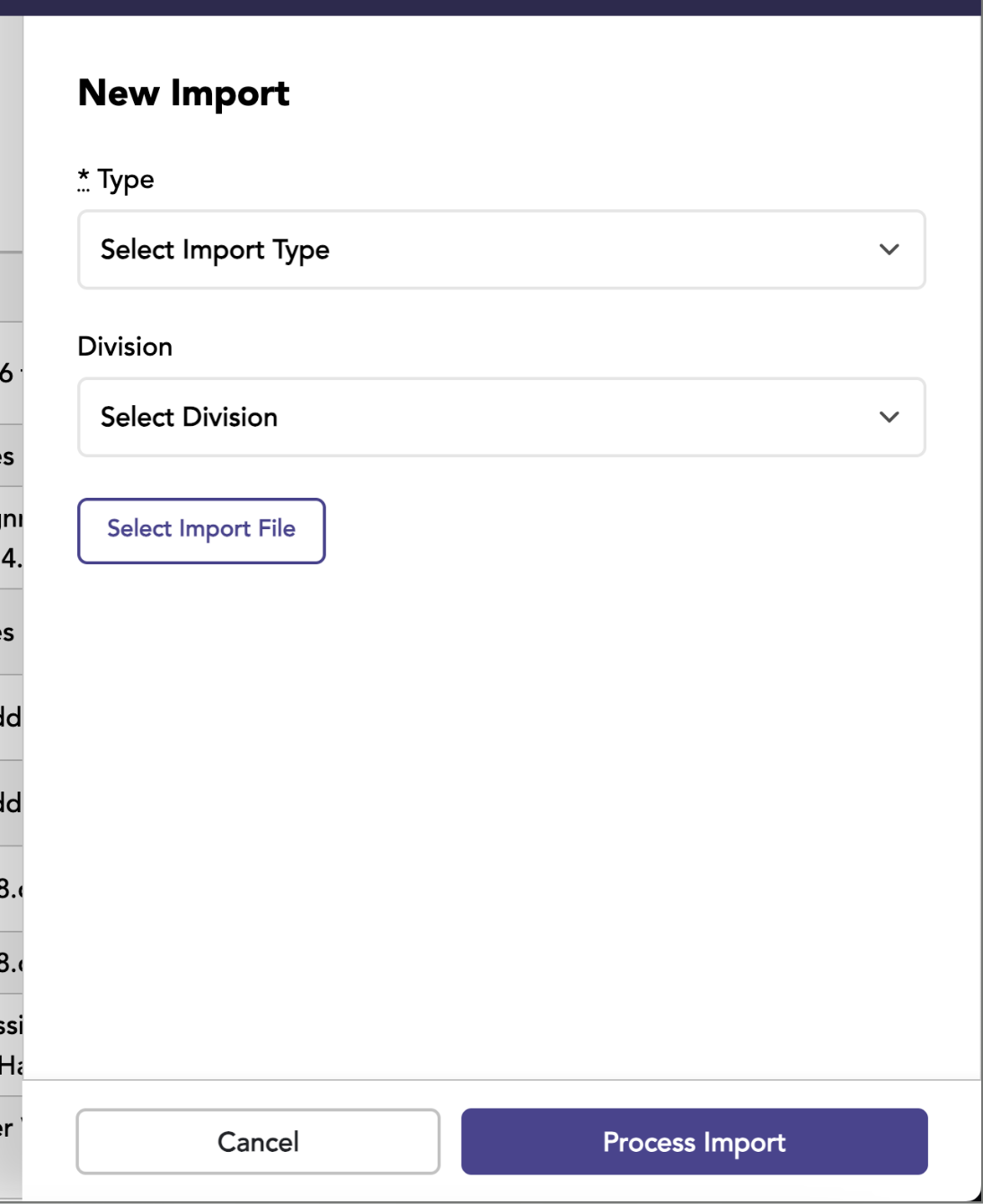
Dry Run Processing
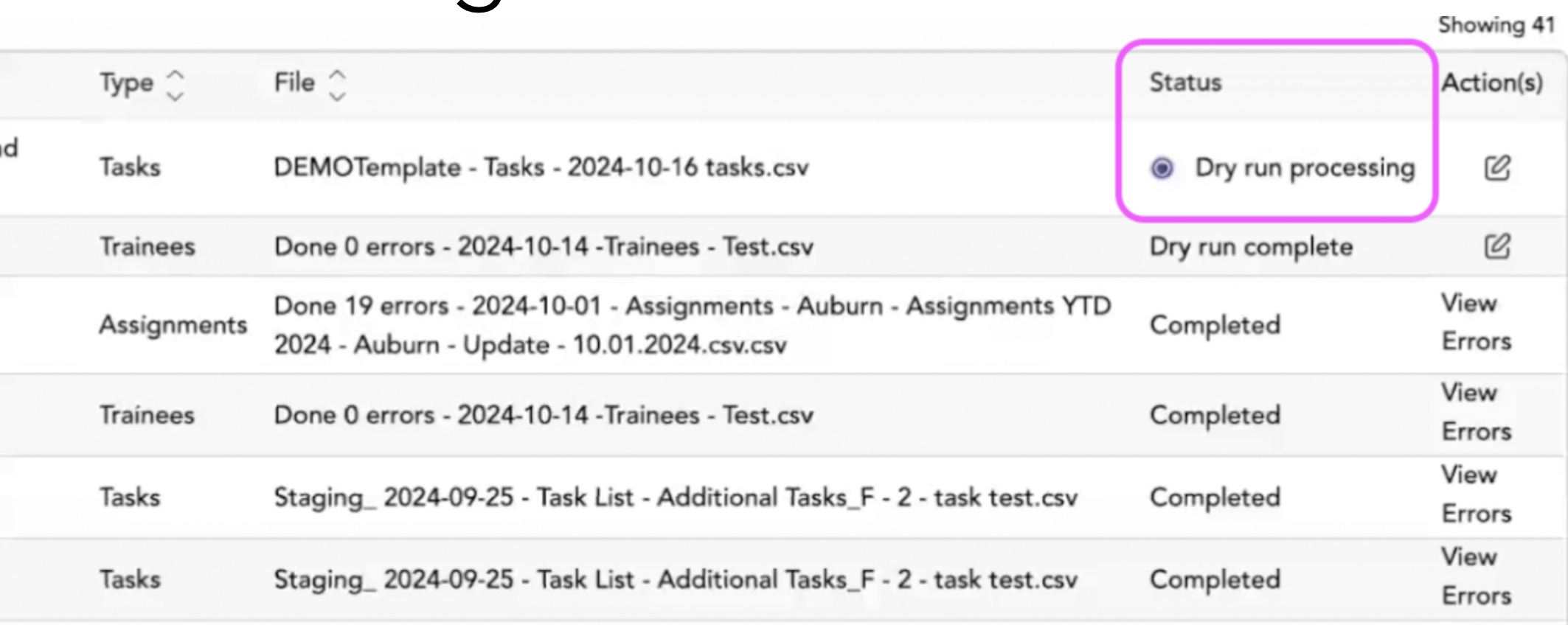
The dry run will process in the background. The time required to complete the dry run depends on the amount of data being processed. You can navigate to another area of the software & come back, or wait a few minutes & refresh the page.

Click the edit icon to view the dry run status. This view will show what will be imported and allow you to proceed. If you have several errors, you may decide to upload a new file.
- Items will either be created or updated.
- Error items will not be imported.
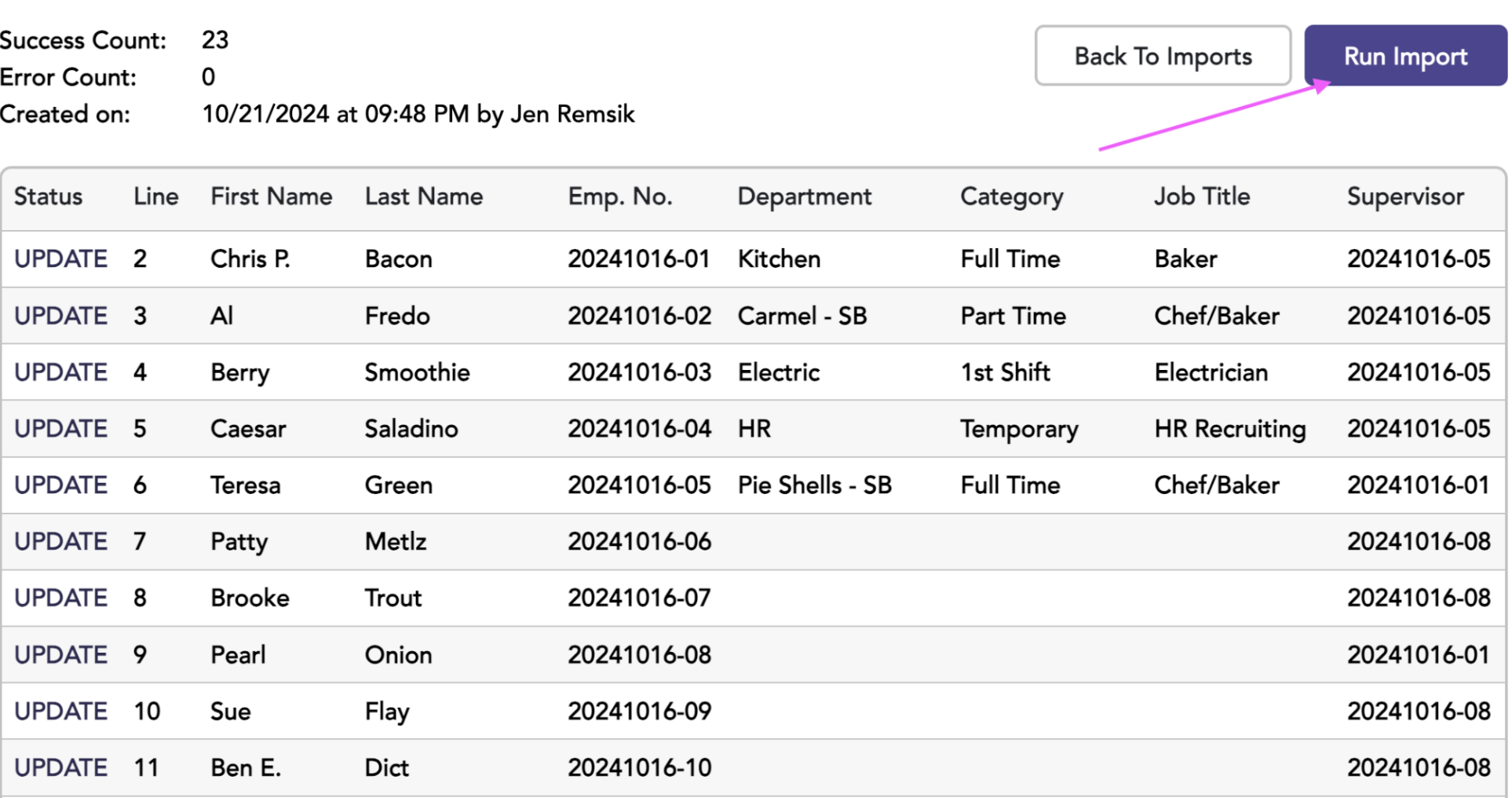
Click Run Import. Just like the dry run, the data import will run in the background. The amount of time to complete the import depends on the amount of data being processed. You can navigate to another area of the software & come back, or wait a few minutes.
Importing Data
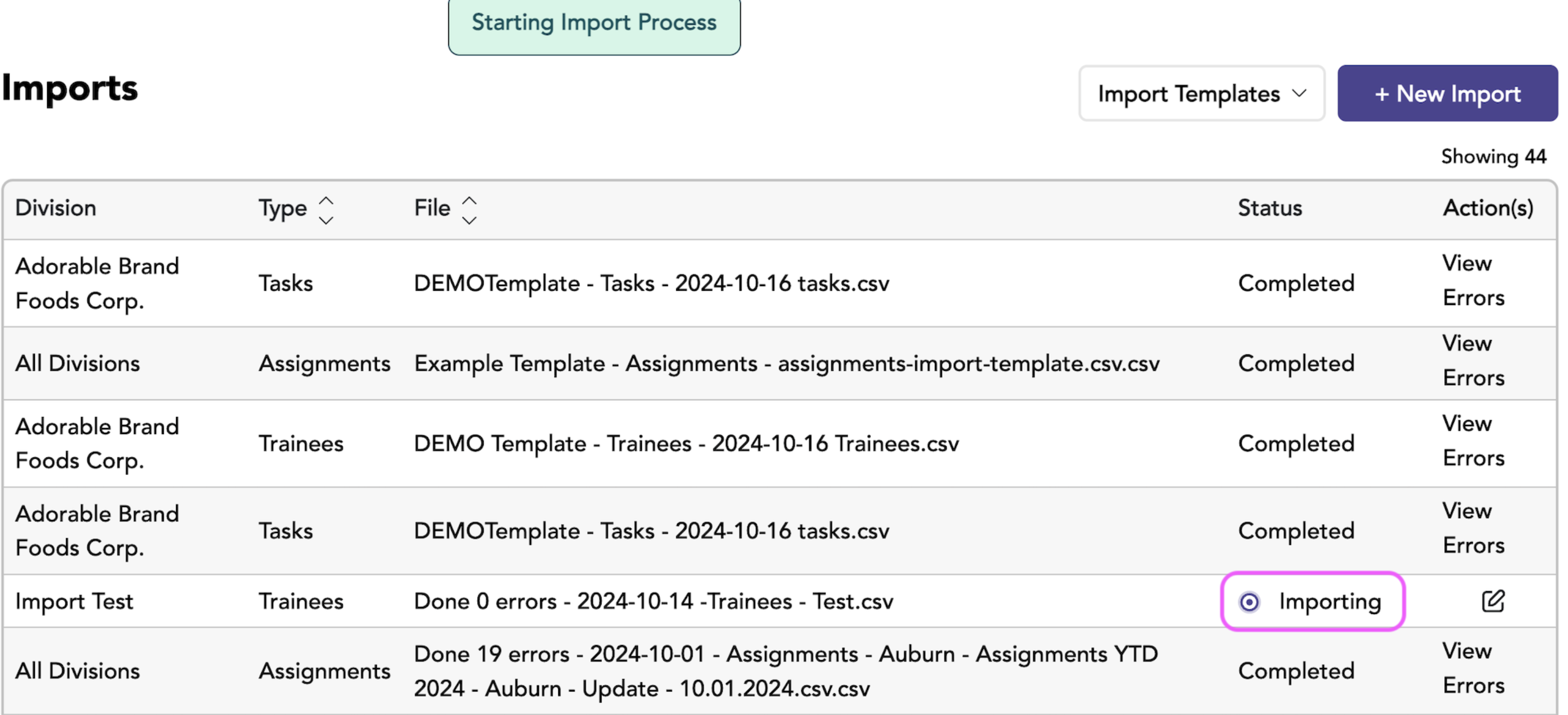
Once the import is done, the status will update to Completed.
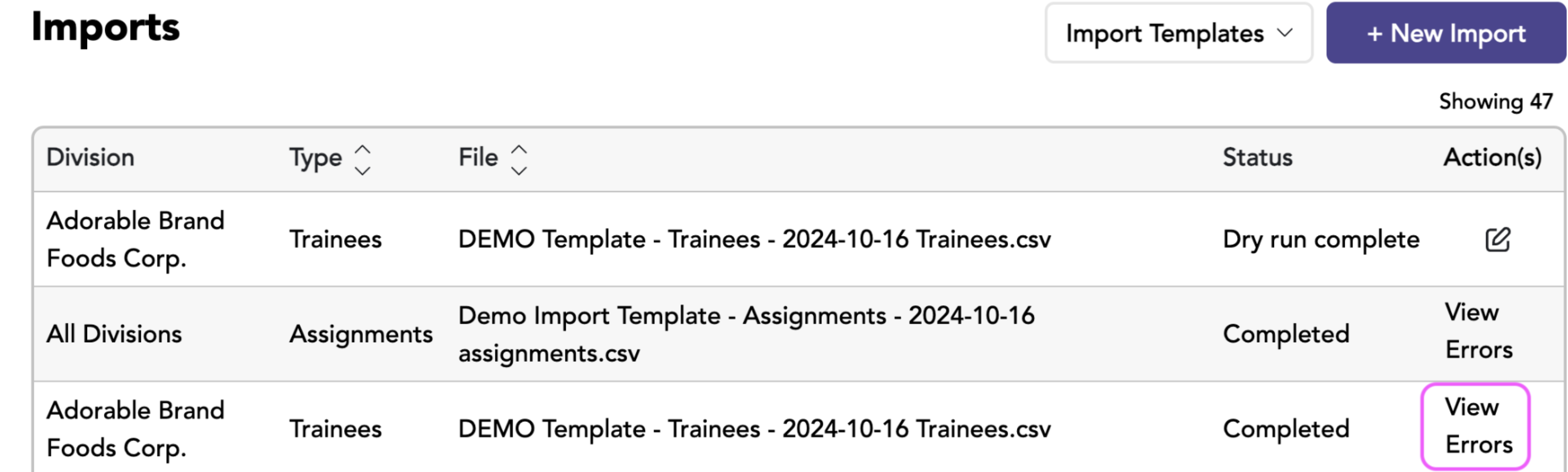
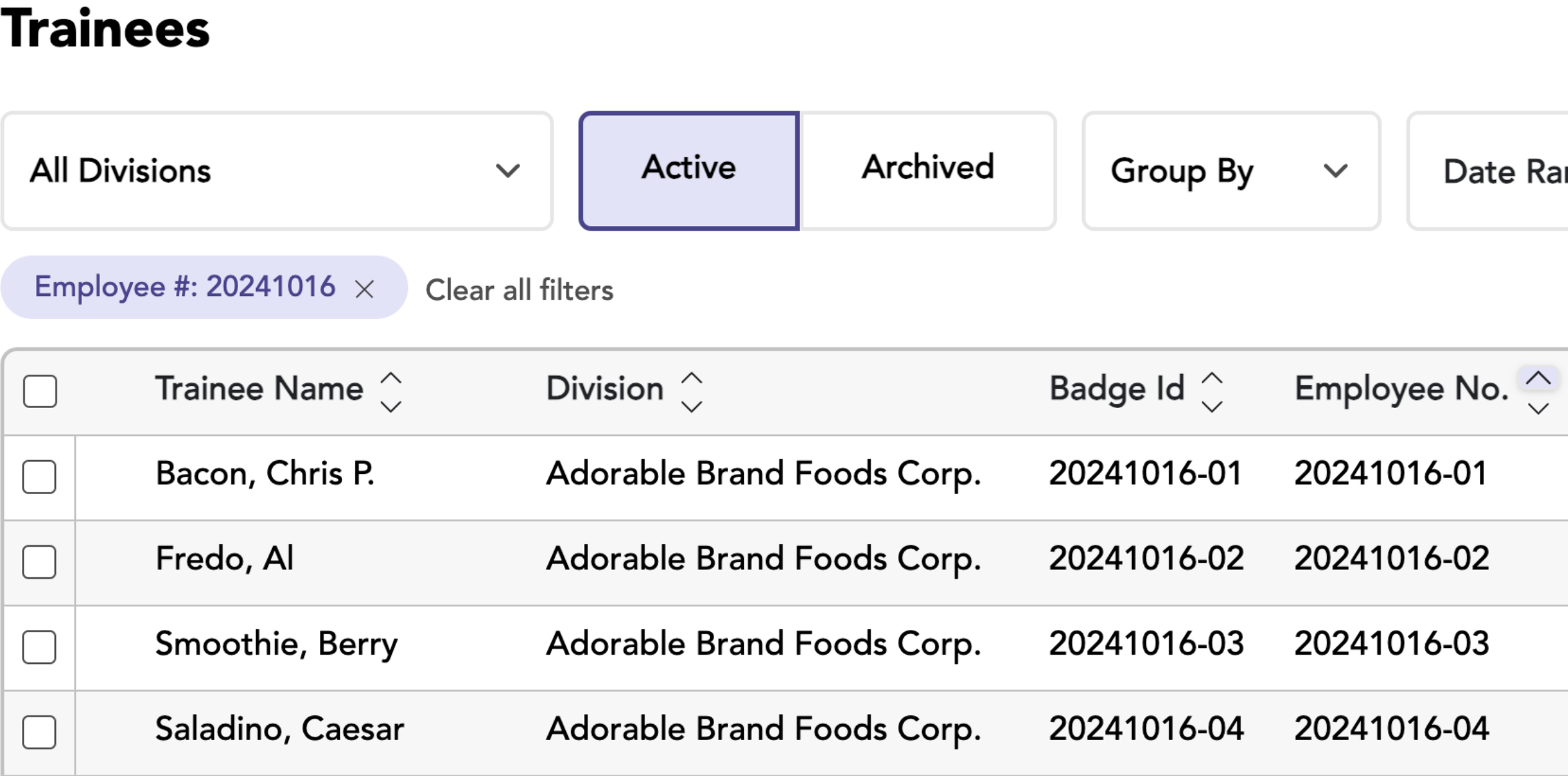
Now you can explore and find your newly added data
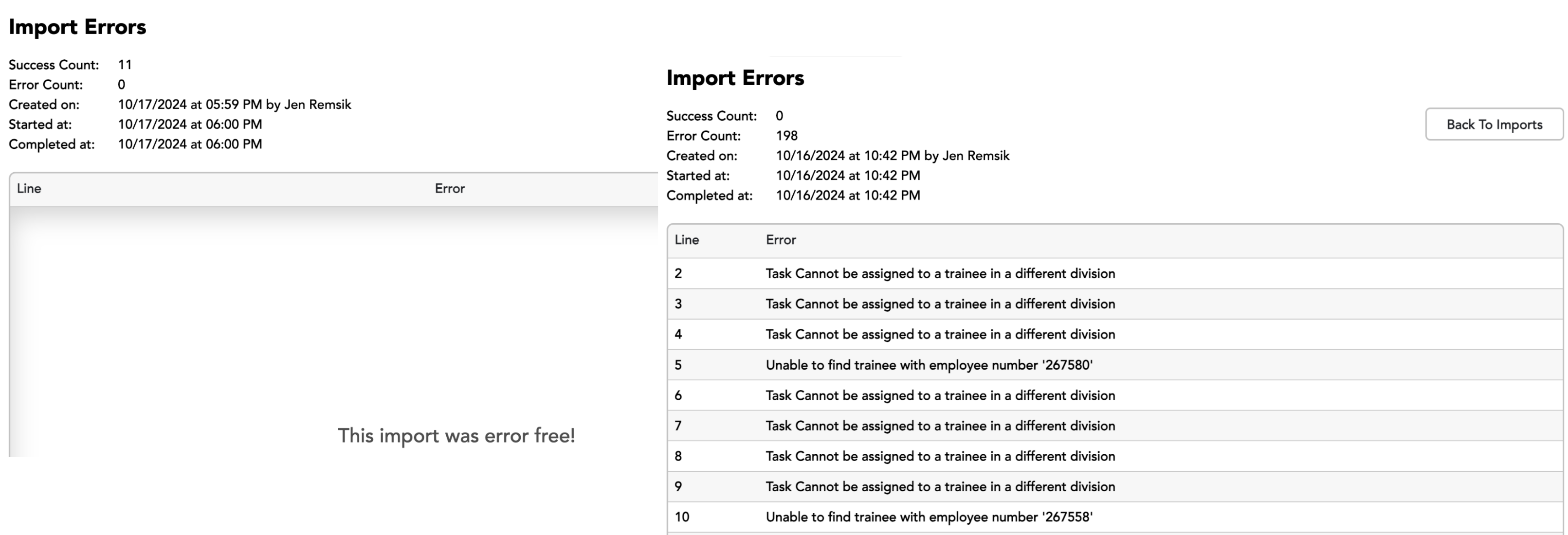
Or you can click “View Errors” on the import log. Any errors will be listed (see right). Please note that everything that is successfully imported will be removed from the import log and will appear in the Audit Log.