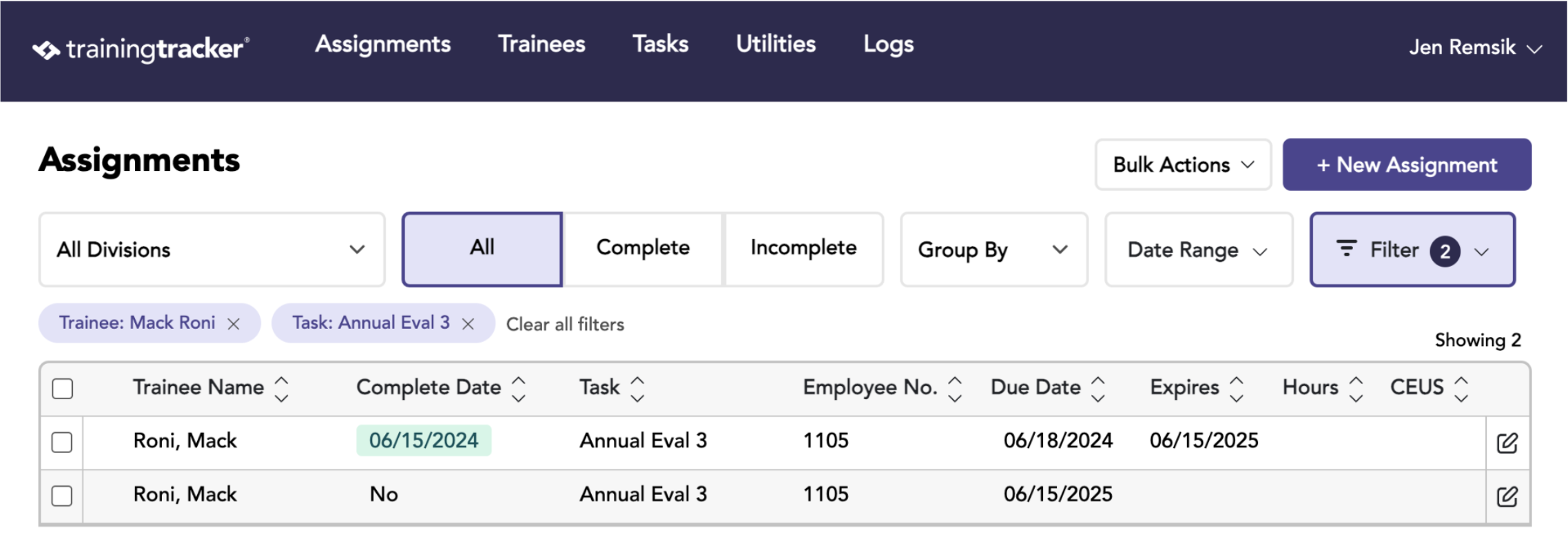
Set up tasks that repeat periodically and set an expiration date.
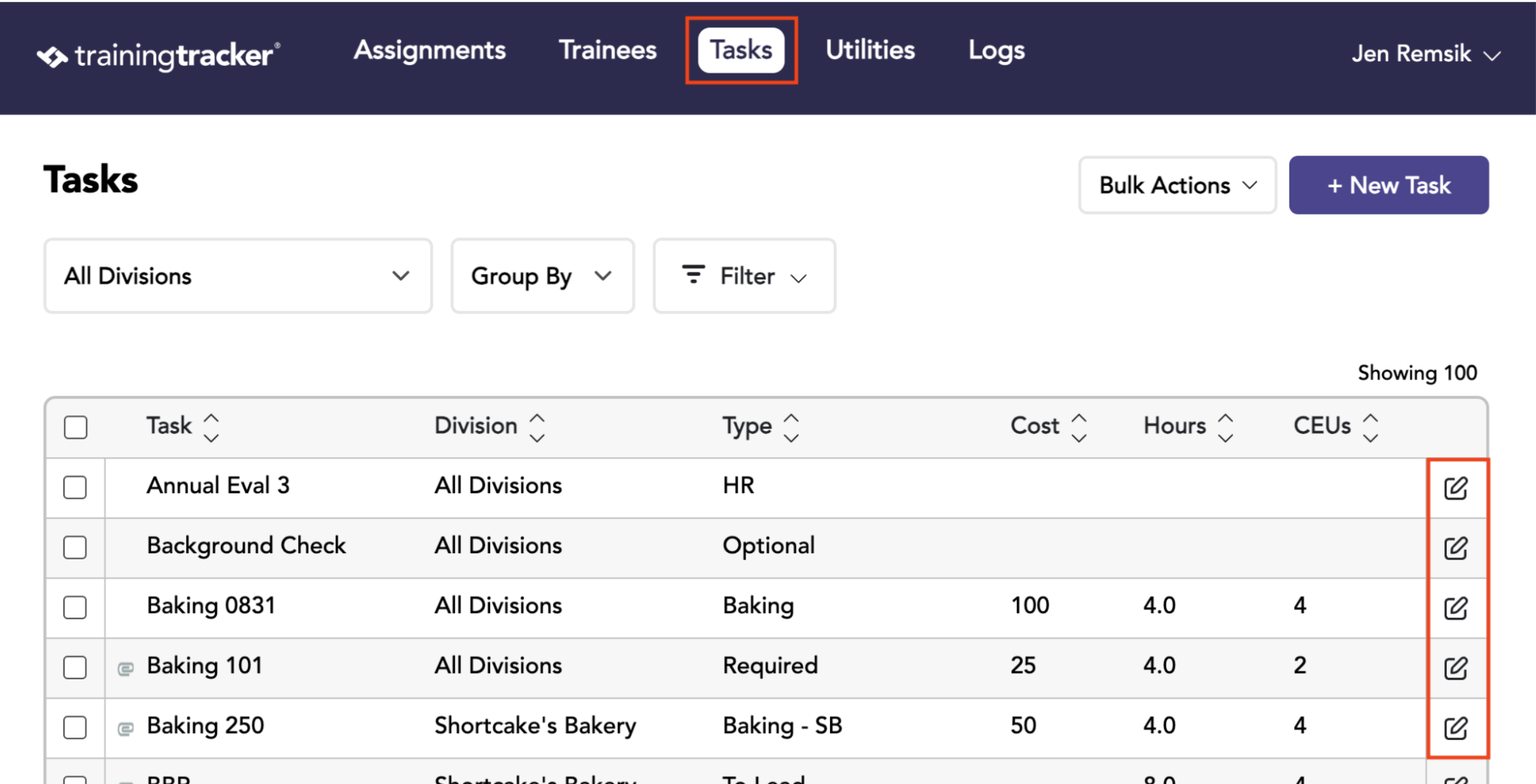
Go to the tasks tab and edit the task that should repeat/expire.
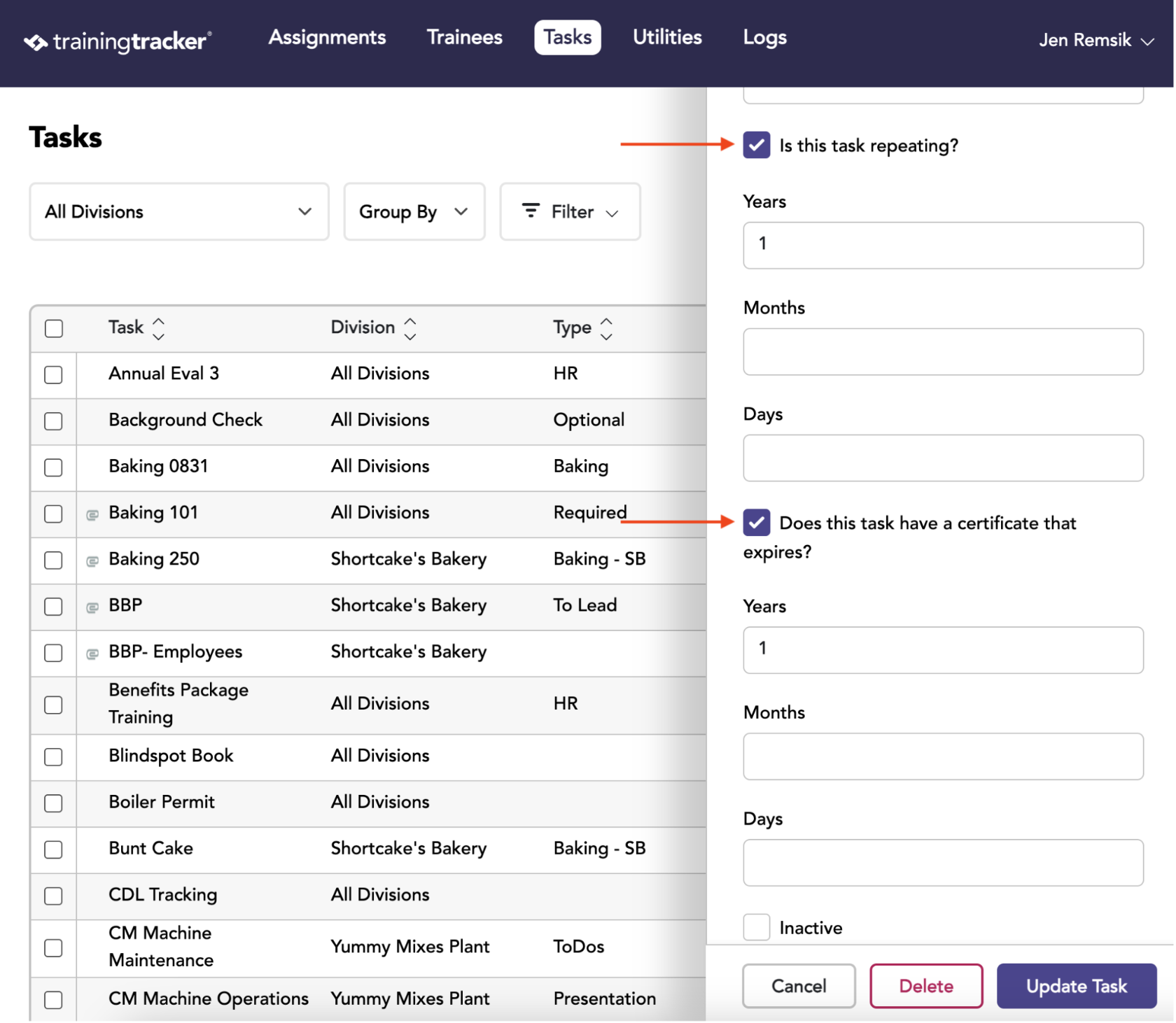
Scroll down to the repeats and expires section. Check repeats and expires. Enter the Number of years, months, and days.
Typically, you want a task to repeat if it expires, but not always.
Choose expires if the training certification expires.
Choose repeats if you want trainees to be reassigned a task once it is complete.
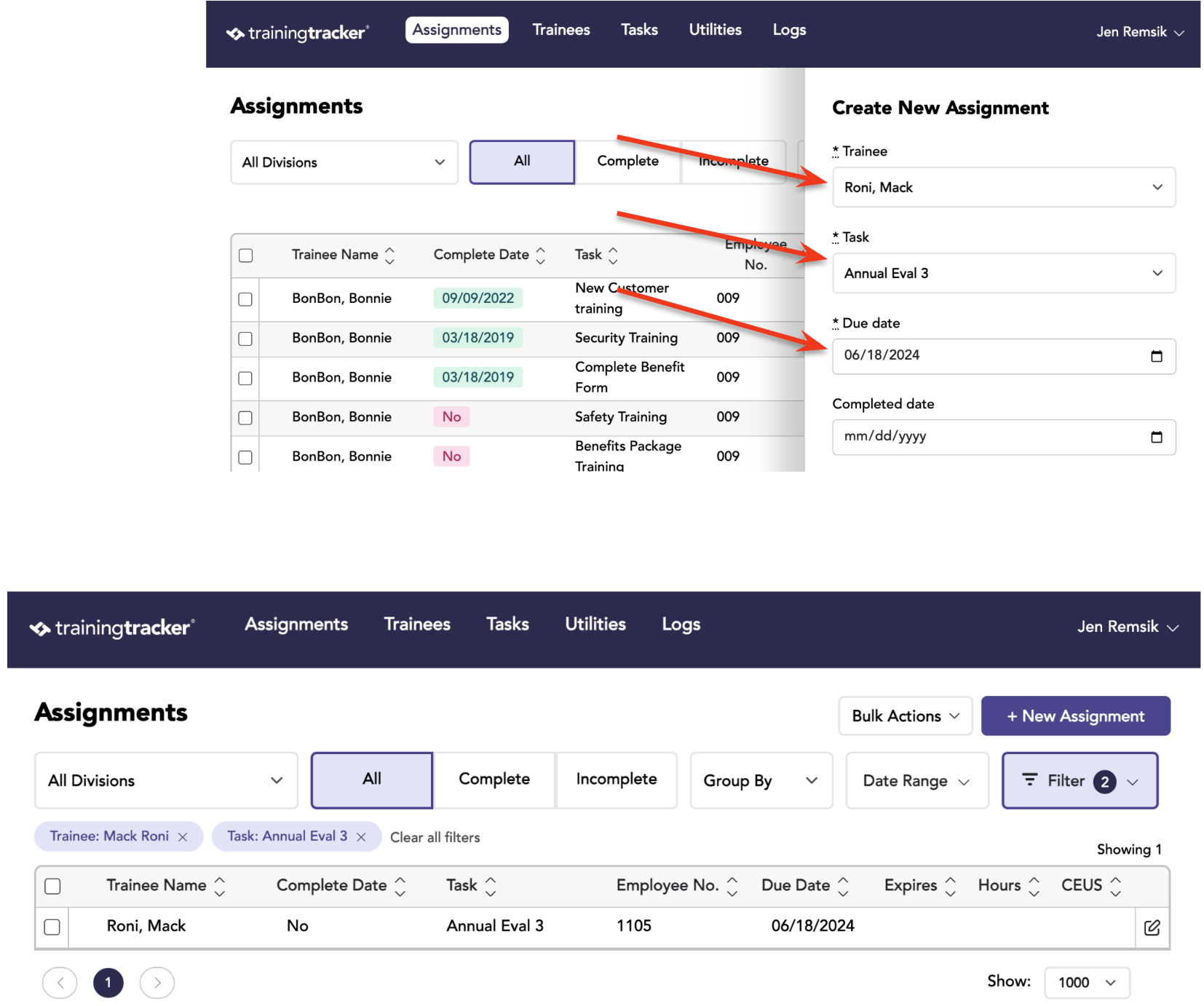
To demonstrate how the repeat works, go to the assignments tab and choose Create New Assignment.
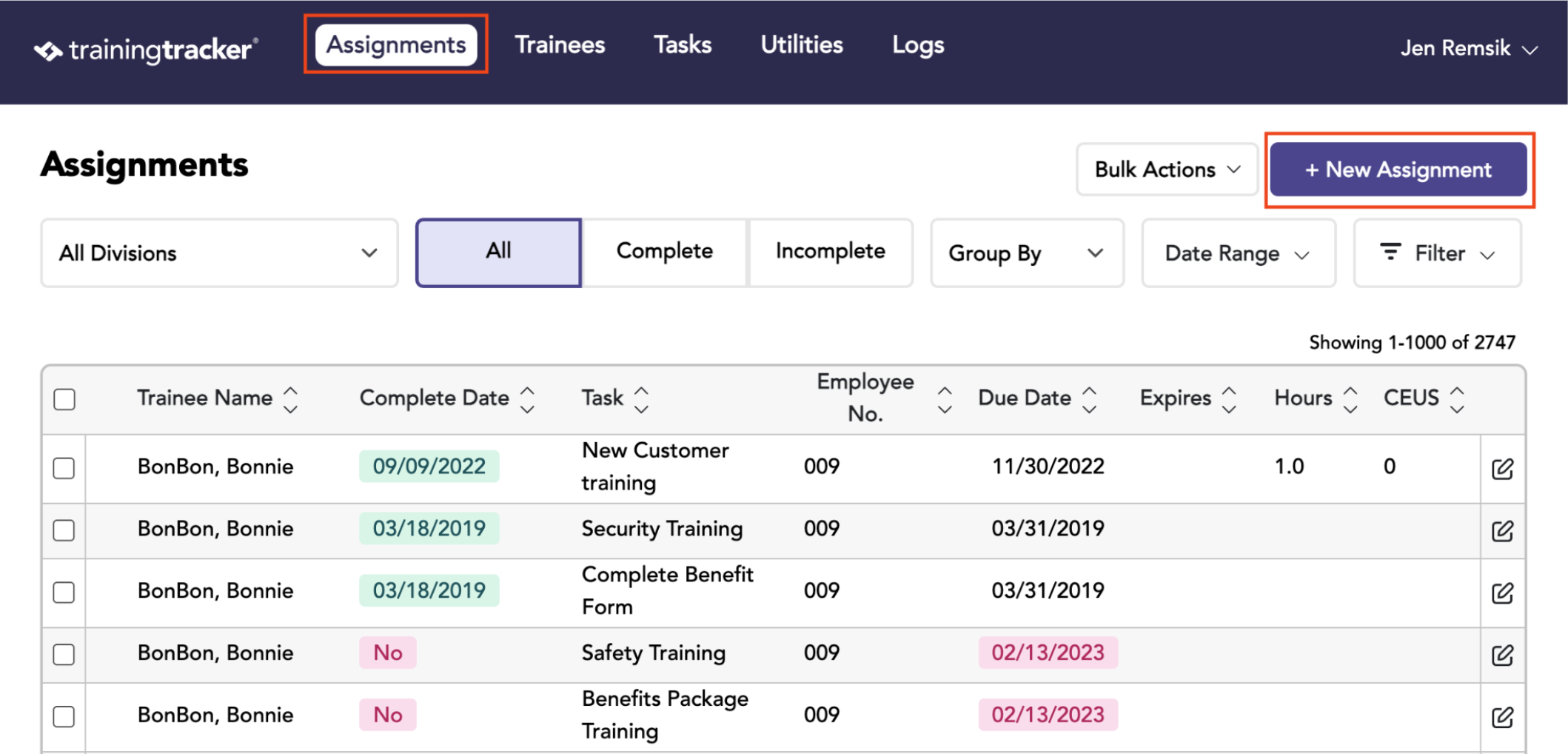
Assign the desired task (the one that repeats) to a trainee and set a due date.
The result will be an assignment.
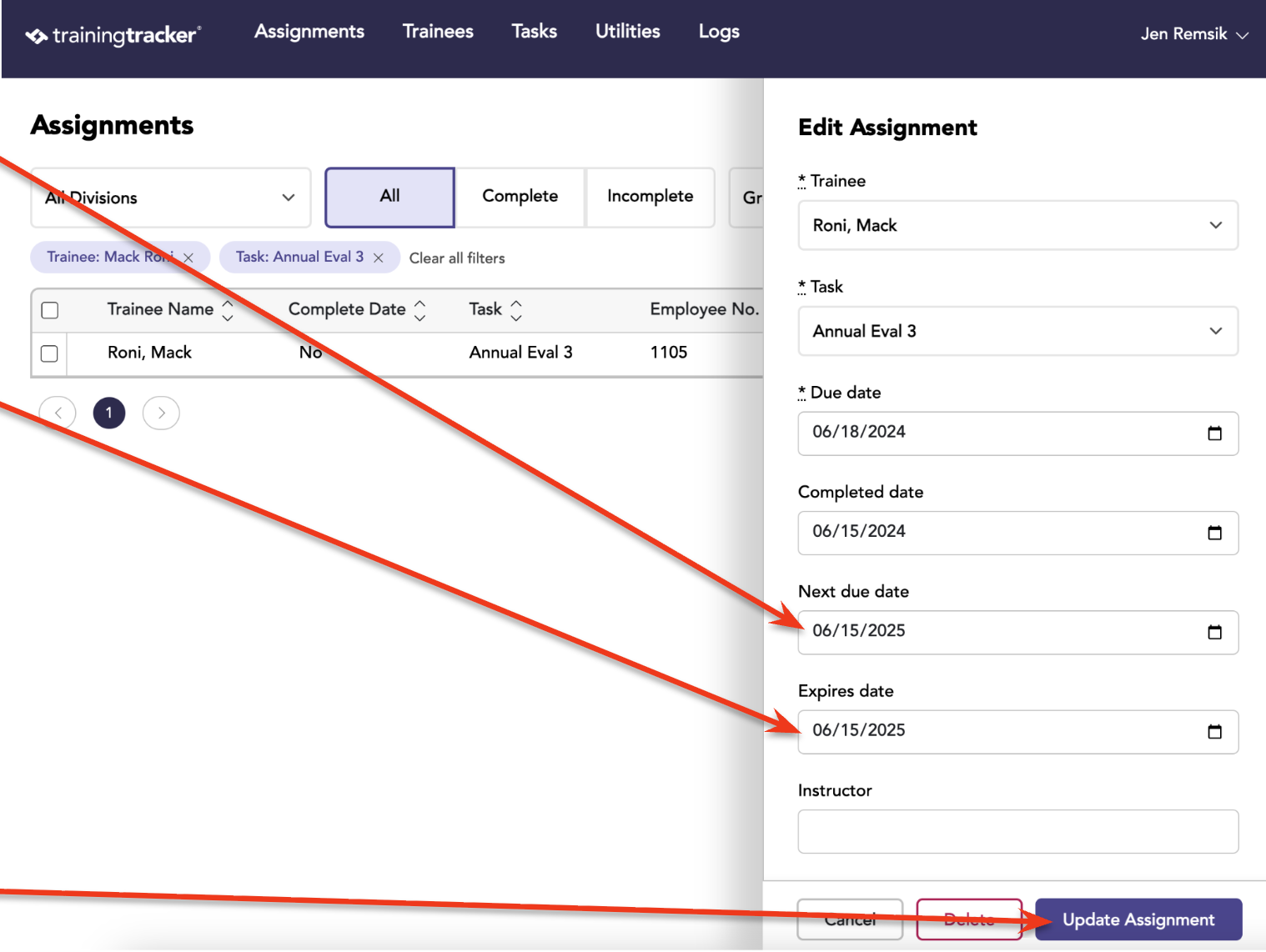
Edit the assignment, and add a completed date.
Because the associated task (Annual Eval 3) is set to repeat, the next due date is automatically filled in.
Because the associated task (Annual Eval 3) is set to expire, the expiration date is automatically filled in.
Tip: You can override either of these dates if you like
Click update assignment.
Back on the assignments tab, you will see that the original task is marked as complete, with the expiration date added, and a new task is created due two years later. The expiration date indicates when the completed task expires, but the new task indicates that the trainee needs to retake the training at a later time.