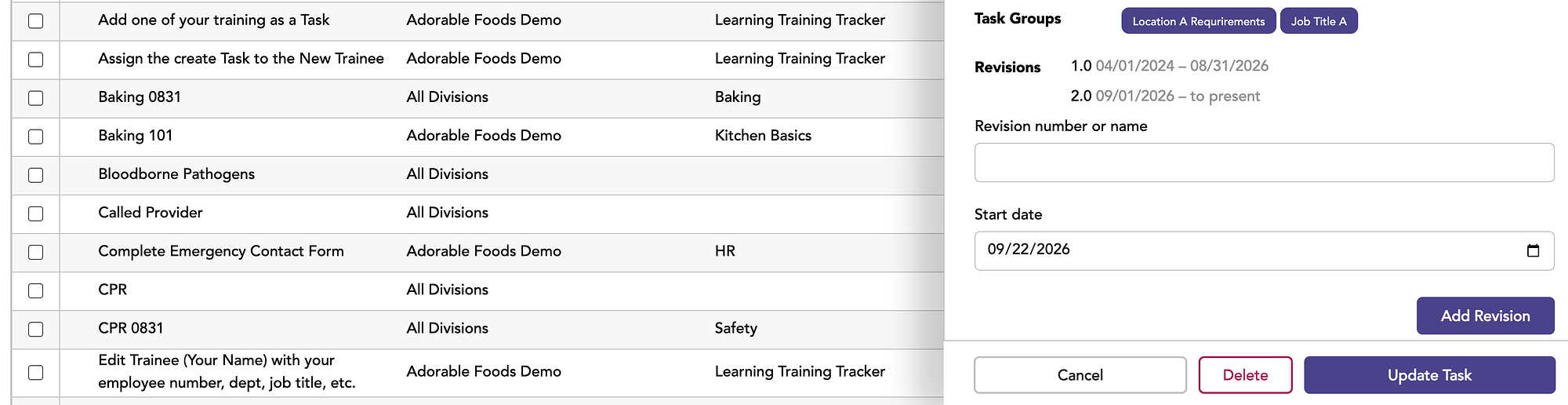
When a task (training) changes, whether it’s an updated SOP, a new version of a safety course, or a refreshed video, you’ll want a record of which version each trainee completed. Training Tracker lets you add a revision number or name to any task along with the date it took effect. Once a revision is added, each assignment completed from then on is automatically labeled with the revision in effect on its complete date, so you can see exactly which version each trainee received.
Before you begin
You’ll need permission to edit tasks in your Training Tracker account. Have the new revision’s name or number ready (for example, “2.0,” “Rev B,” or “2026 Update”), along with the date it takes effect.
Adding a revision to a task
1. Open the task.
**Click **Tasks in the top menu. Find the task you want to update (use Filter to search for it by name if your list is long), then click the edit icon at the right end of its row. The task’s details panel opens on the right side of the screen.
2. Find the Revisions section.
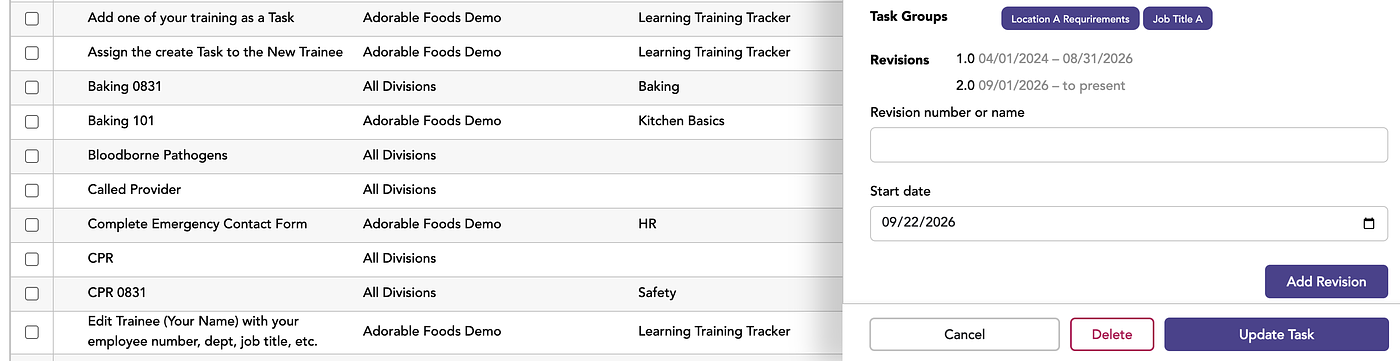
**Scroll down in the details panel, past Task Groups, to **Revisions. Any revisions already recorded for the task are listed here with their date ranges. The current revision shows “to present” as its end date.
3. Enter the revision number or name.
**In the **Revision number or name field, type how you’d like this version identified. You can use a number (2.0, 3.1), a letter (Rev C), or a descriptive name (Spring 2026 Update), whatever matches how your organization labels its training materials.
4. Set the start date.
**The **Start date field defaults to today. If the revision took effect on a different date, click the calendar icon to choose it, or type the date in MM/DD/YYYY format.
Note: Revisions aren’t applied retroactively. Assignments completed before you add a revision won’t show that revision, even if you set its start date in the past. To keep your records complete, add each new revision to the task as soon as the change takes effect.
**5. Click Add Revision.
**The new revision appears in the list with its start date and “to present.” The previous revision automatically ends the day before the new one starts, so there’s never a gap or overlap between versions.
6. Click Update Task to save your changes.
Example
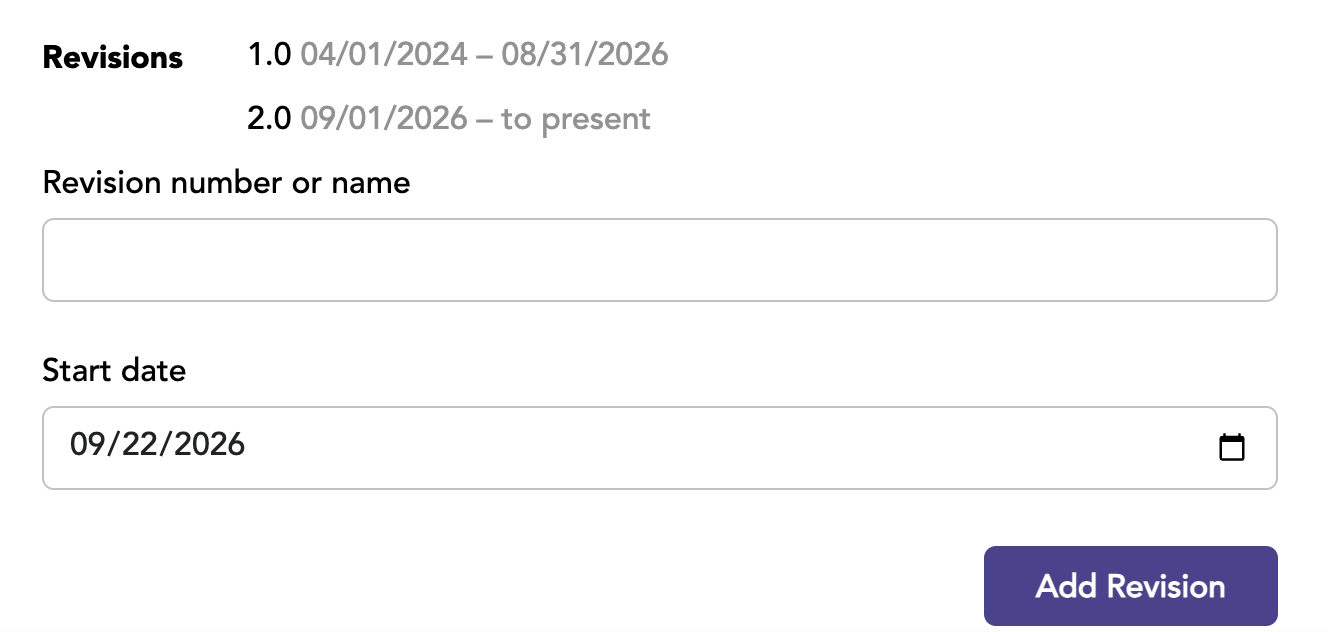
Suppose Baking 101 has revision 1.0, which started on 04/01/2024. On 09/01/2026, you add revision 2.0. The Revisions list then shows:
- 1.0: 04/01/2024 - 08/31/2026
-
2.0: 09/01/2026 - to present
Seeing revisions across your account
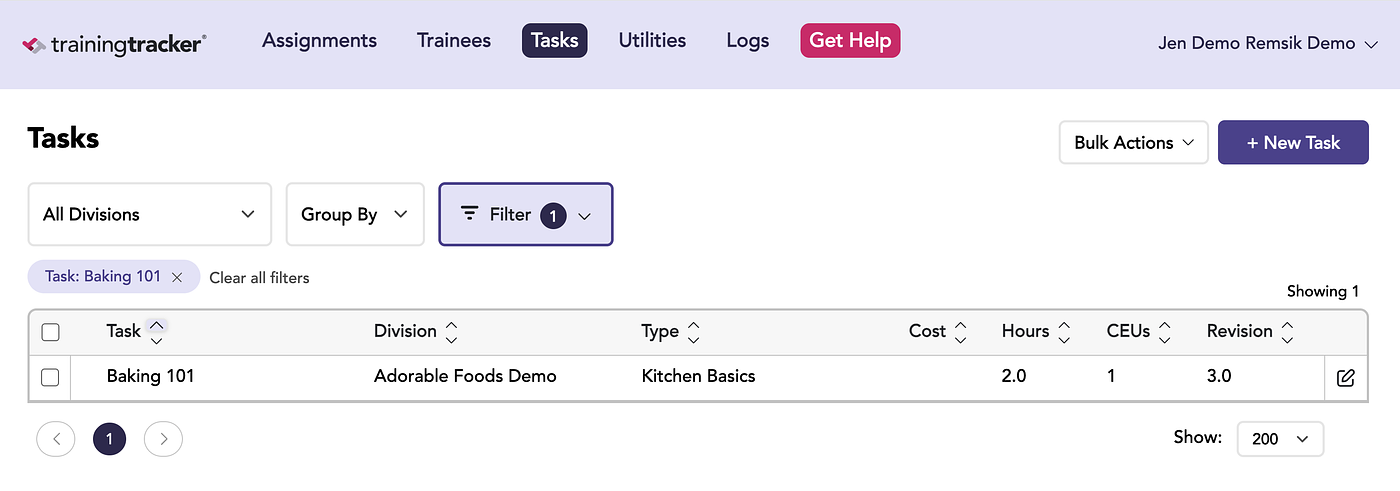
On the Tasks page, the Revision column shows the current revision for each task, so you can see at a glance which version of every training is in effect. Click the column header to sort by revision.
On the Assignments page, the Revision column shows which version of the task each trainee completed. When an assignment is completed, Training Tracker labels it with the revision in effect on its complete date. In the Baking 101 example above, completions dated 08/31/2026 or earlier show 1.0, and completions dated 09/01/2026 or later show 2.0.
This makes it easy to answer questions like “Who still needs to complete the updated version?” or “Which version did this employee complete?” during an audit or inspection.
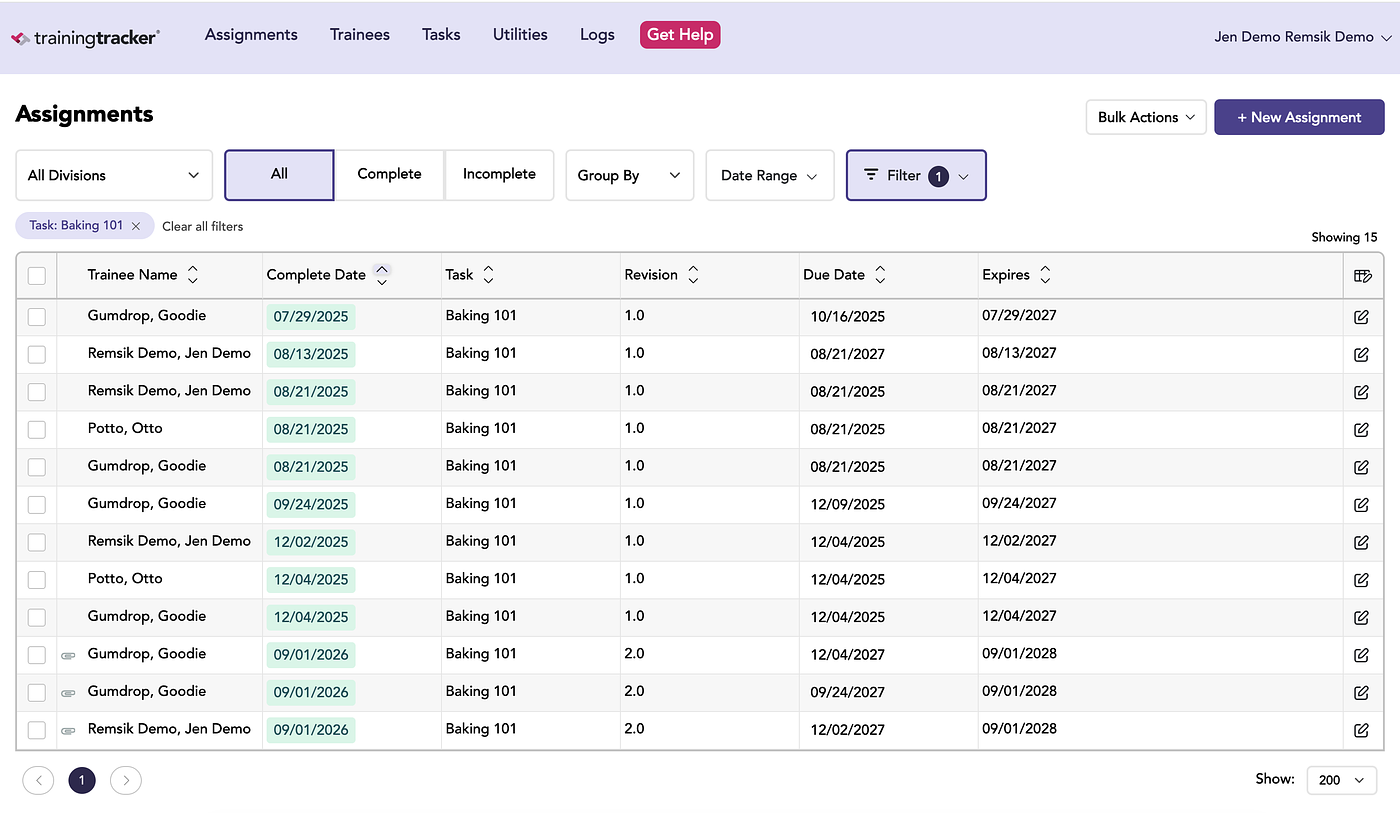
Assignments completed before a revision was added to the task won’t show that revision. For example, if trainees completed Baking 101 before any revision was set up, their Revision column will be blank. Only assignments completed after the revision is added are labeled.
Tips
**Add revisions as soon as the change takes effect. **Revisions are only applied to assignments completed after the revision is added to the task. Adding it promptly ensures every completion of the updated training is labeled with the correct version, which matters most for compliance training like Bloodborne Pathogens or CPR.
Use a consistent naming convention. Choosing one format across all your tasks, such as whole numbers for major changes and decimals for minor ones, makes your records easier to read and sort.
Set the start date to when the change actually took effect. Because revisions are matched to completions by date, an accurate start date ensures each completion is labeled with the correct version. This matters most for compliance training like Bloodborne Pathogens or CPR.
Check the history before adding. A quick look at the existing Revisions list helps you avoid duplicate names and confirm what the next number should be.