Thank you for choosing to integrate your HRIS (Human Resources Information System) with Training Tracker! This integration will automatically sync your employee data, making it easier to manage training programs, track completion rates, and maintain accurate records without manual data entry.
When you connect your HRIS to Training Tracker, you’ll enjoy these benefits:
- Automatic employee sync: New hires are automatically added to Training Tracker
- Ongoing updates: Employee information stays current across both systems
- Reduced manual work: No more copying and pasting employee data
Training Tracker currently supports integrations with:
- ADP Workforce Now
- GitHub
- Oracle Taleo
- Paycom
- UKG Pro HCM
- Workday
Don’t see your HRIS listed? Contact our support team to inquire about adding your platform.
Before You Begin
What you’ll need:
- Admin access to your Training Tracker account
- Admin or API access to your HRIS platform
- Your HRIS provider’s API credentials (e.g., Client ID, API Key, or similar)
- Approximately 10–15 minutes to complete the setup
Important: Make sure you have the authority to connect external applications to your HRIS. Some organizations require IT approval for new integrations.
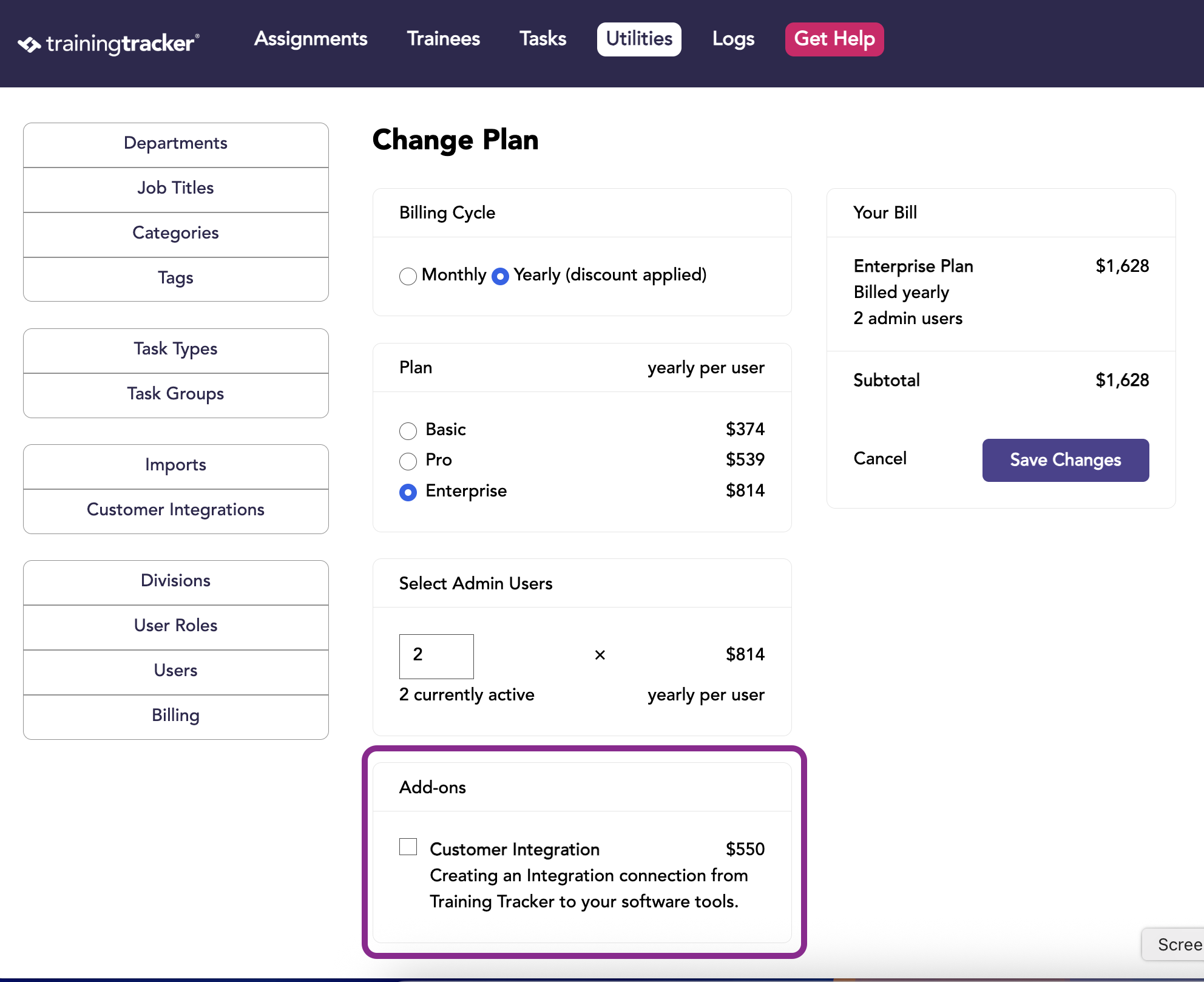
Step 1: Purchase the Integration Add-On
- Log in to your Training Tracker account
- Go to the Billing page
- Purchase the Customer Integration add-on feature
- The Customer Integrations page will appear as an option on the Utility tab under Imports
Step 2: Create a New Integration
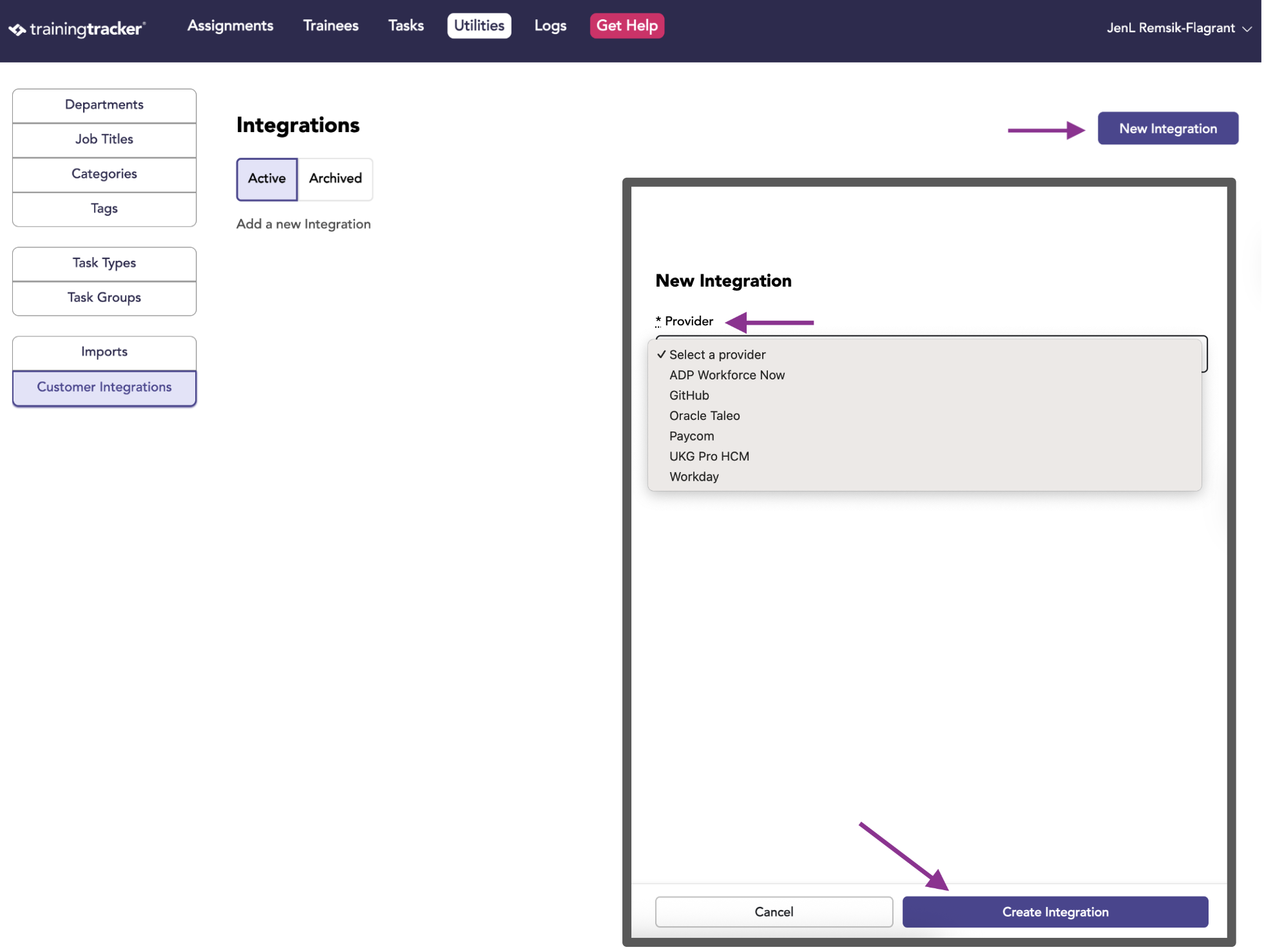
- Go to the Customer Integrations page
- Click New Integration
- Select your HRIS provider from the dropdown (ADP, Workday, etc.)
- Enter the provider-specific credentials that appear (these vary by provider — for example, ADP Workforce Now requires a Client ID, while Paycom requires a SID and Username)
- Click Save
Can’t find your platform? Contact our support team, and we’ll reach out within 1–2 business days.
Note: Training Tracker only requests read access to employee data. We cannot modify, delete, or access sensitive information like payroll or banking details.
Step 3: Initial Data Sync
Once your integration is saved and connected, the data syncing process will begin:
- You will periodically see new Trainees added to your account, as the sync runs in the background
- The initial sync typically takes 15–30 minutes, depending on company size
Employee fields that sync to Training Tracker:
- First Name
- Last Name
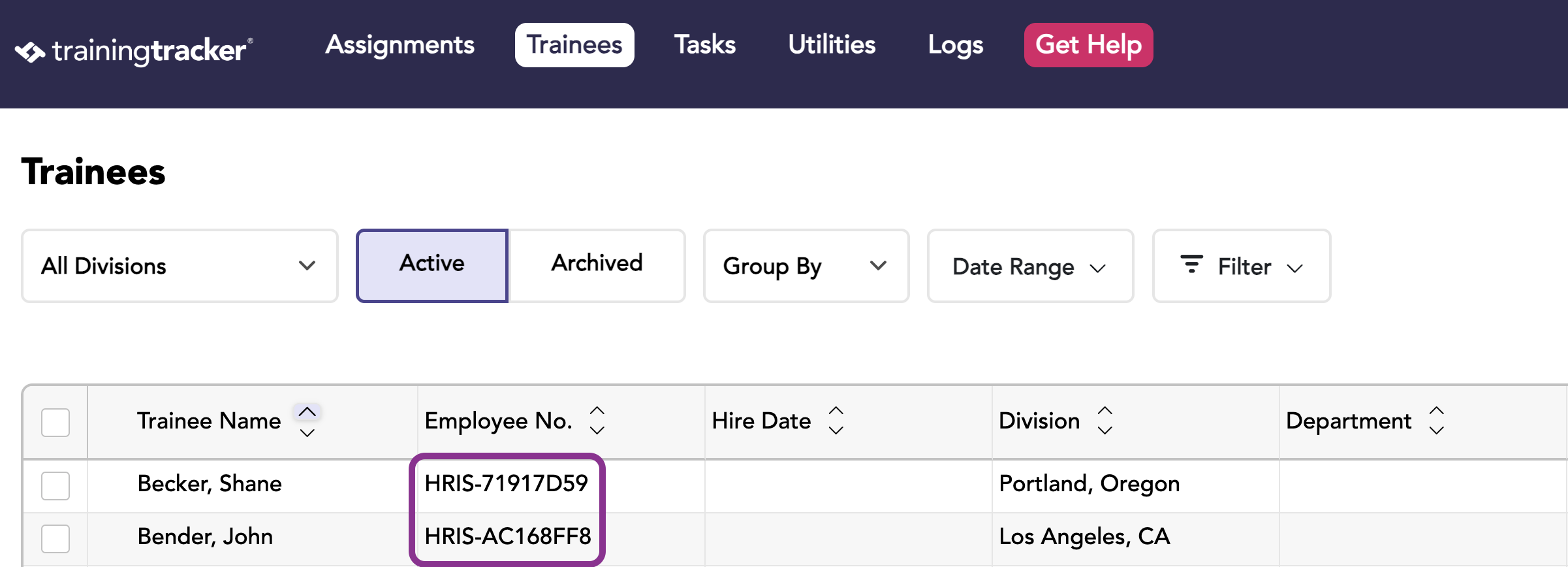
- Employee ID/Number
- Email Address
- Phone Number
- Department
- Division/Location
- Job Title
- Supervisor
- Hire Date
- Termination Date
What happens during initial sync:
- All employees from your HRIS are imported to Training Tracker as Trainees
- Existing employee records are matched by Employee ID/Number and updated
- New employees are created automatically
- Departments, divisions, and job titles are created in Training Tracker if they don’t already exist
Sync frequency:
- On connection: An initial sync runs when the integration is first connected
- Daily: Syncs run once per day to keep data current
Step 4: Review and Confirm
Once the initial sync completes:
- Go to the Trainees page to verify that employees appear correctly
- Check that departments and job titles are mapped properly
- Review any sync errors shown on the Integrations page
Step 5: Test the Integration
It’s a good idea to verify that the integration works correctly:
- Add a test employee in your HRIS (or update an existing employee’s information)
- Wait for the next sync cycle
- Check that the new/updated information appears in Training Tracker
- Verify that the data is accurate and complete
Viewing Sync Errors
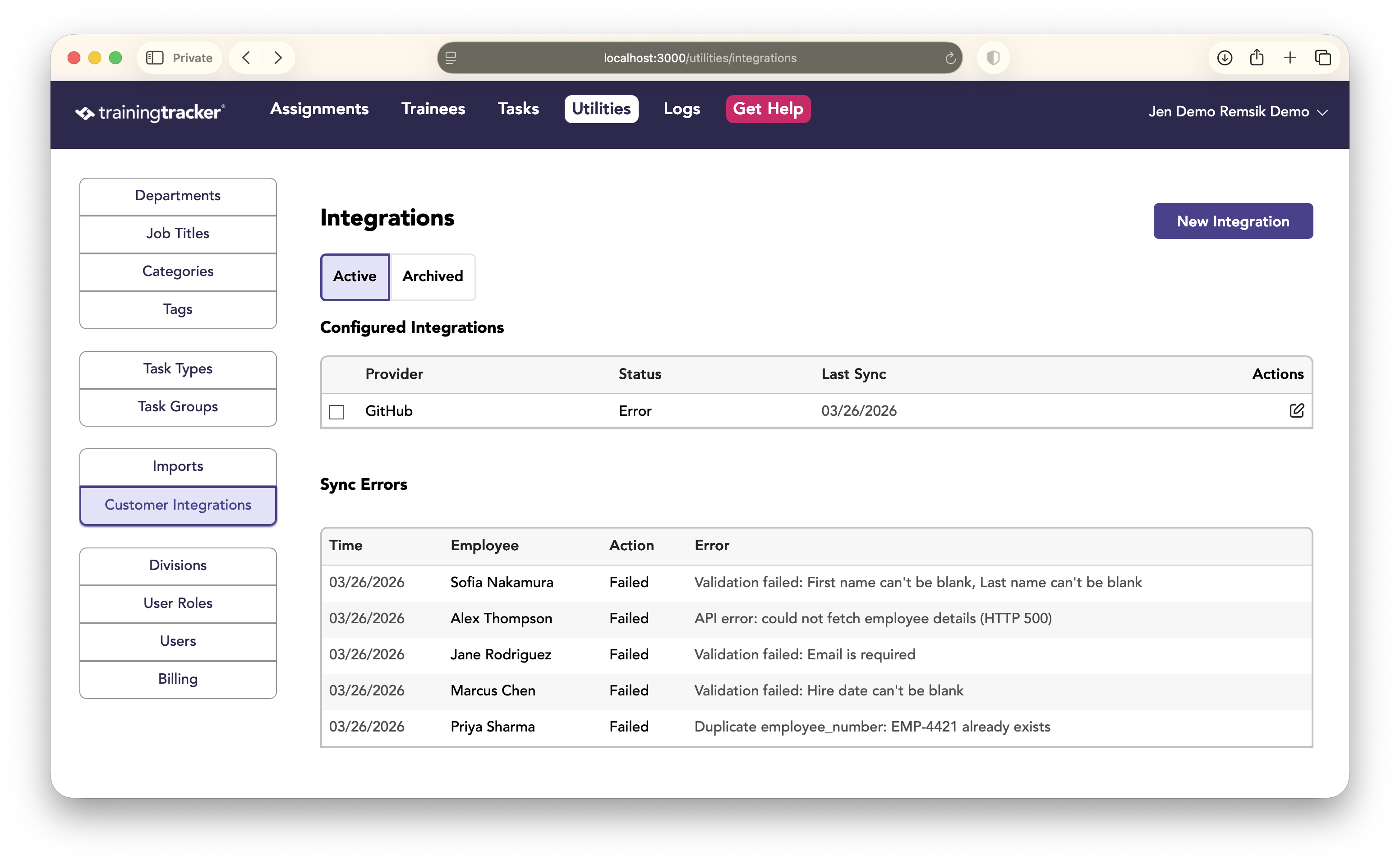
If any employees fail to sync, errors are displayed on the Integrations page:
- Employee name — who failed to sync
- Action — whether it was a create or update
- Error — what went wrong
The most recent 100 errors will appear on the Integration page. Items successfully integrated will appear in the Audit log.
Archiving or Deleting an Integration
If you need to remove an integration:
To Archive:
- Go to the Integrations page
- Click the Edit icon in the Actions column on the integration you want to archive
- Click Archive
- Confirm your decision
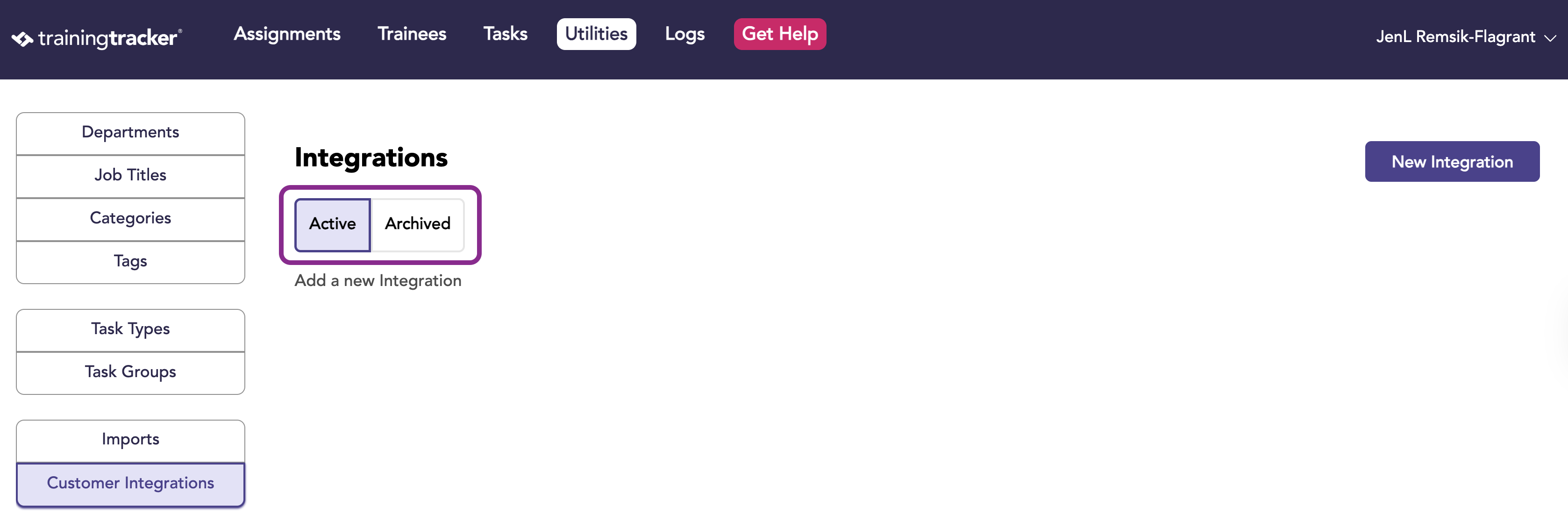
- The integration stops syncing, but can be viewed under the Archived filter
To Delete (permanently):
- Switch to the Archived filter on the Integrations page
- Select the archived integration
- Click Delete Selected
- Confirm your decision
- Note: Existing employee data in Training Tracker remains intact
Troubleshooting Common Issues
“Connection Failed” or Sync Errors
Possible causes:
- Incorrect API credentials entered during setup
- Expired or revoked API credentials in your HRIS
- Your HRIS requires IT approval for API access
Solution: Verify your credentials. Edit the integration to update them if needed. Contact your IT team if you don’t have API access.
Employees Not Syncing
Possible causes:
- Employee data is incomplete in your HRIS (missing name or ID)
- The integration status is not “Active”
- The Connection ID is missing or invalid
Solution: Check that the integration shows as “Active” on the Integrations page. Verify that employee records in your HRIS have complete data.
Duplicate Employee Records
Possible causes:
- Employee ID/Number changed in the HRIS
- Employee was manually added to Training Tracker before the integration was connected
Solution: Training Tracker matches employees by Employee ID/Number first, then by name and hire date. If duplicates appear, merge the records from the Trainees page.
Sync Taking Too Long
Possible causes:
- Large number of employees (1,000+)
- HRIS API is running slowly
- Network connectivity issues
Solution: Initial syncs can take up to 30 minutes for large organizations. Subsequent syncs are faster since they only process changes.
Missing Departments or Titles
Possible causes:
- Data is missing or blank in your HRIS
- Department or job title fields aren’t populated for those employees
Solution: Ensure the data exists in your HRIS. Training Tracker automatically creates departments and job titles based on what your HRIS provides.
Data Privacy and Security
Your data security is our priority:
- All data requests are encrypted using industry-standard SSL/TLS
- We only request read-only access to employee data
- No sensitive information (payroll, banking, SSN) is ever accessed
- You can archive or delete the integration at any time
- Unified.to, our integration partner maintains enterprise-grade security certifications
Questions about data privacy? Review our [Privacy Policy].(/privacy)
Best Practices
- Review regularly: Check the Integrations page monthly to ensure syncs are running smoothly
- Update when you upgrade: If you change HRIS platforms or upgrade versions, create a new integration
- Train your team: Make sure HR admins know not to manually update employee data in Training Tracker that’s managed by the HRIS integration
- Communicate with IT: Keep your IT team informed about integrations, especially in regulated industries
Getting Help
If you encounter any issues or have questions:
Support Resources:
- Email: hello@trainingtracker.com
- Support page: https://trainingtrackersoftware.com/pages/support
When contacting support, please include:
- Your company name and account email
- Your HRIS platform name
- Screenshots of any error messages
- What behavior did you expect, and what actually happened?
Thank you for using Training Tracker! If you have feedback about this integration or suggestions for improvement, we’d love to hear from you at hello@trainingtracker.com.